
Search assistance
ChatGPT for Google Search: What an Extension Should Do
See how a ChatGPT for Google extension can explain search results, summarize sources, and support follow-up questions without replacing source checks.
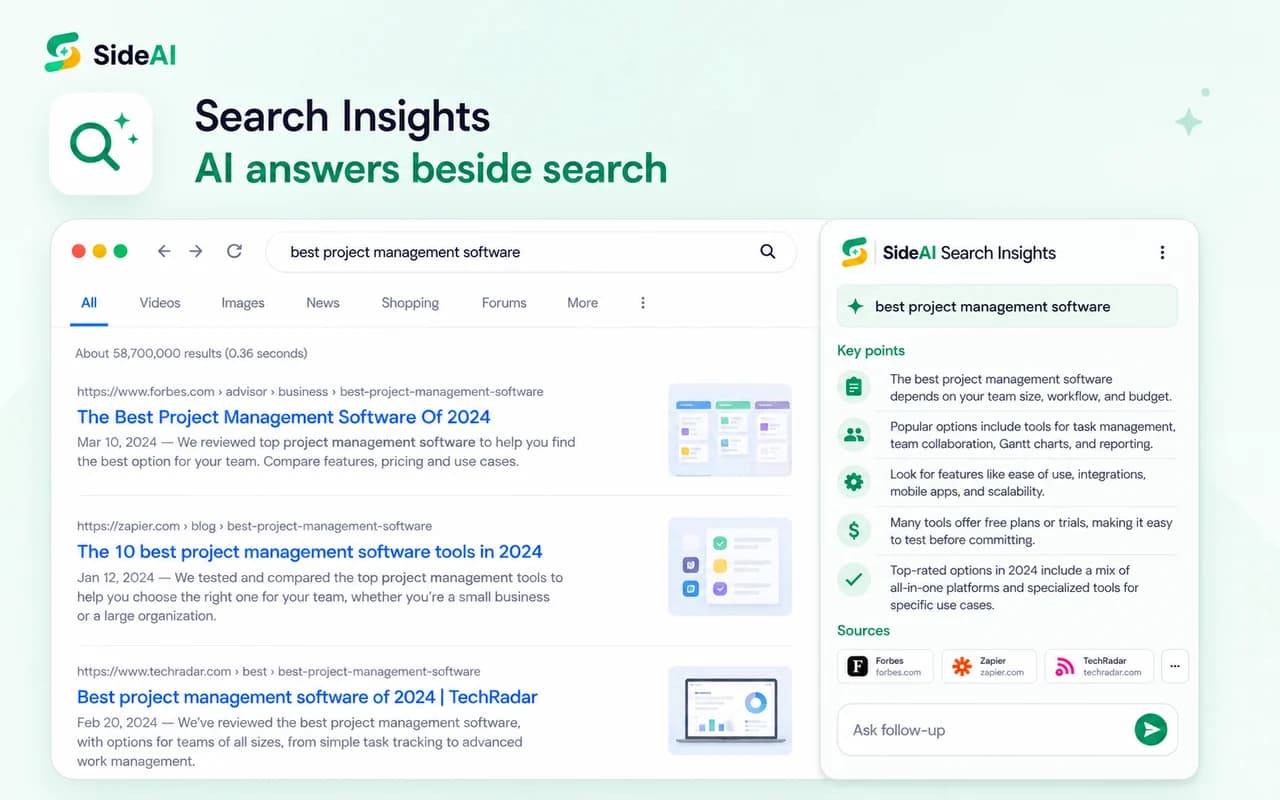
A ChatGPT for Google extension can place an AI explanation beside ordinary search results. The useful version does more than generate a paragraph: it preserves the result page, shows the sources it relied on, and gives you a way to ask a narrower follow-up question.
This workflow can save time when you are learning the vocabulary of a topic or comparing several sources. It should not hide where the information came from. Search results, source pages, and dates still matter.
SideAI publishes this guide and provides the Search Insights workflow shown below. We reviewed the current product and first-party documentation on September 13, 2026. SideAI is independent and is not affiliated with Google or OpenAI.
What does “ChatGPT for Google” mean?
People use the phrase for at least three different tools:
- An answer beside Google results. The extension reads the query or visible result context and displays an AI response in a browser panel.
- A sidebar you open while searching. You decide when to ask ChatGPT about a query, result, or page.
- A search-engine redirect. The extension changes searches typed in the browser address bar so they go to another service.
These behaviors are not interchangeable. SideAI offers Search Insights beside Google results and a general ChatGPT sidebar. OpenAI's original ChatGPT Search announcement describes an official Chrome extension that can route browser address-bar searches into ChatGPT. Check the publisher and description before installing so you know which behavior you are choosing.
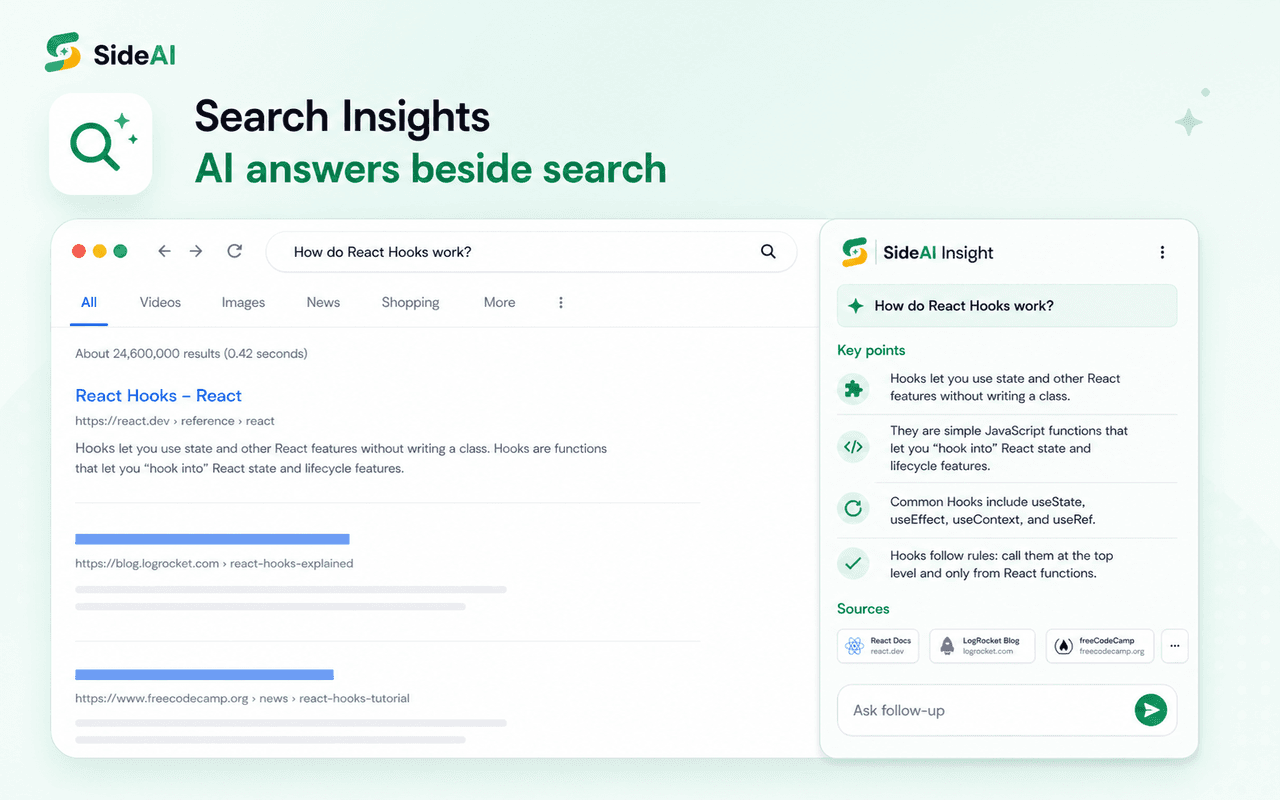
When an AI answer beside search helps
The search-assistant layout is useful for early research tasks:
- learning the main terms in an unfamiliar subject;
- turning a broad query into smaller questions;
- comparing themes across several visible results;
- identifying sources to open next; and
- keeping a follow-up conversation beside the search page.
For example, a search for “best project management software” has many possible meanings. A useful assistant can first separate team size, budget, integrations, and reporting needs. You can then open sources that address the factor you care about.
It is less useful when you need a single official fact, a live price, a current legal rule, or a medical answer. In those cases, open the authoritative source and verify the date and jurisdiction directly.
Five things a search assistant should show
1. The query it is answering
The panel should make the active query obvious. If you refine the Google search, confirm that the assistant updates rather than continuing to answer the previous query.
2. A concise first response
The first answer should help you choose the next result, not replace every result with a wall of text. Key points, a short comparison, or a list of decision factors is easier to check.
3. Visible sources
Source links let you inspect the evidence, publisher, publication date, and missing context. A link is not proof by itself, but an answer with no inspectable source is much harder to trust.
4. Follow-up questions
Search is iterative. After the first overview, you may need to ask “Which options have a free plan?” or “Which source explains this limitation?” The assistant should let you narrow the task without losing the result page.
5. A clear boundary between search and page analysis
A search-result summary works with result context. A full-page assistant works with a page you opened. The extension should make that difference clear so you know what evidence the answer could actually use.
How to test a ChatGPT search extension
Choose a topic where you already know the basics, then run this short test.
Step 1: Search normally
Enter a descriptive query in Google. Avoid a one-word query because it can have several unrelated intents.
Step 2: Compare the panel with the visible results
Check whether the answer reflects the actual query and whether its sources appear relevant. Watch for invented product names, outdated dates, or a conclusion that is stronger than the visible evidence.
Step 3: Ask for decision factors
Instead of “Which is best?”, ask the assistant to list the criteria you should compare. This produces a more useful research plan and reduces the chance of accepting a generic recommendation.
Step 4: Open one source
Read the source itself. Check who published it, when it was updated, and whether it supports the assistant's wording. For purchases, health, law, finance, or security, inspect multiple authoritative sources.
Step 5: Continue with the page
If the source deserves deeper attention, use a page assistant to summarize its headings or ask a question about a specific section. This moves from discovery to source-grounded reading.
How SideAI Search Insights fits the workflow
The current SideAI Chrome Web Store listing describes Search Insights as an AI overview beside Google results. The same extension also provides a normal ChatGPT sidebar and page tools.
That combination supports a three-stage research flow:
| Stage | SideAI workflow | What to verify |
|---|---|---|
| Discover | Search Insights beside Google | Query, key points, and source relevance |
| Inspect | Open a promising result | Publisher, date, evidence, and full context |
| Explore | Page Assistant or selected-text action | Whether the answer stays tied to the opened source |
Keeping the result page visible is useful because you can compare the AI summary with the titles and publishers Google returned. You can also skip Search Insights and open the regular sidebar when the query is private, sensitive, or unrelated to the visible results.
Search assistant versus general ChatGPT sidebar
A search assistant begins with the search query. A general sidebar begins with the prompt you write and can remain available on other webpages.
Choose Search Insights when you want a quick map of a results page. Choose the page workflow when you have already found a useful source. Choose normal chat when the question does not depend on the current page.
For a wider explanation of browser-side AI tools, read the practical ChatGPT Chrome extension guide. To compare different sidebar products and account models, see SideAI vs Sider vs Monica.
Privacy and permissions to check
Search queries can reveal personal interests, work projects, health concerns, and purchasing plans. Before enabling any search assistant:
- read its privacy policy;
- review the site access Chrome requests;
- understand whether the query, result content, or opened page is sent to an AI service;
- avoid sensitive searches until you understand the data flow; and
- remove the extension if its permissions do not match its stated function.
Google's guide to installing and managing Chrome extensions explains how to review an extension and remove it. Chrome also lets users change site access for many installed extensions.
Common mistakes
Treating the generated answer as a Google result
The AI panel is produced by the extension's workflow. It is separate from Google's organic result ranking. Check the linked pages directly.
Asking “What is best?” without criteria
Define location, budget, platform, team size, or another decision factor. A narrower question produces an answer you can test.
Assuming the newest-looking answer is current
Open the source and check its publication or update date. Live prices, product capabilities, laws, and schedules can change after an AI answer was generated.
Sending more context than the task needs
Use the query for discovery, a page for deeper reading, and selected text for a narrow question. Smaller context is easier to inspect and avoids including unrelated content.
Frequently asked questions
Does SideAI replace Google Search?
No. Search Insights appears beside Google results and helps explain or organize them. You can continue opening and evaluating the normal results.
Is SideAI's search assistant made by Google or OpenAI?
No. SideAI is an independent browser extension. Its core sidebar uses the user's existing ChatGPT browser session, while SideAI provides the browser workflow around it.
Does a search assistant always cite the best source?
No. Source selection and summaries can be incomplete or wrong. Prefer primary sources and verify important claims on the source page.
Can I use the extension on macOS?
Yes, in supported Chromium browsers. SideAI adapts shortcut labels for macOS and lets users change shortcuts in its settings.
Use the answer to choose what to read
The strongest role for a ChatGPT search extension is to help you form better questions and choose better sources. Keep the results visible, open the evidence, and move to page-level questions when one source matters. That workflow saves time without giving up the checks that make web research reliable.
Written and reviewed by the SideAI team using hands-on product tests and cited sources. AI may assist with drafting; a person checks the workflow, claims, links, and final copy before publication.