
ChatGPT sidebar
ChatGPT Chrome Extension: A Practical Sidebar Guide
Learn what to check in a ChatGPT Chrome extension, how sidebars differ from search tools, and how to test page, writing, and screenshot workflows.
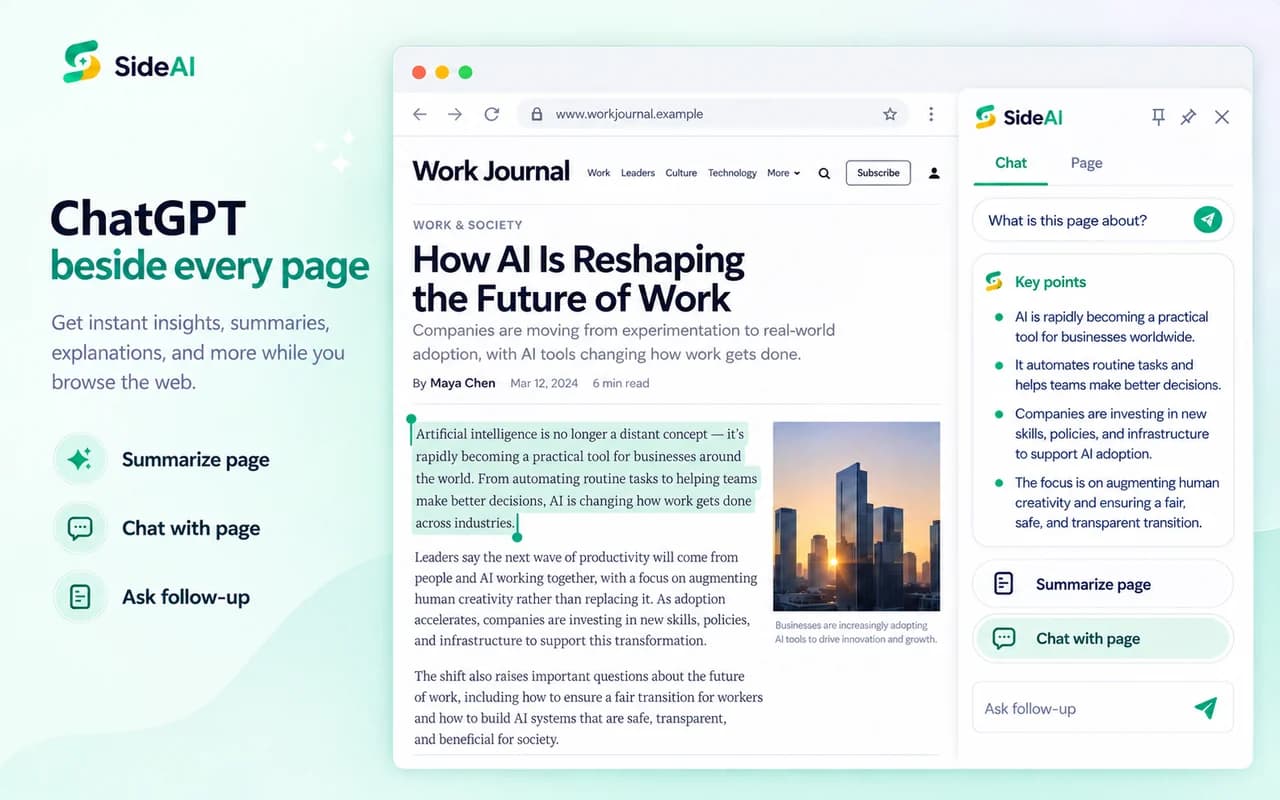
A useful ChatGPT Chrome extension should reduce the distance between a webpage and the question you want to ask. For many people, that means keeping ChatGPT in a side panel, sending only the relevant page context, and returning to the source while they check the answer.
The label covers several different products, though. One extension may open ChatGPT beside every page. Another may add answers to search results. A third may require an API key or provide its own selection of AI models. This guide explains those differences and gives you a practical test before you commit to one.
SideAI publishes this guide and is one of the products discussed. We checked product behavior and current first-party documentation on September 13, 2026. SideAI is an independent extension and is not affiliated with OpenAI.
What is a ChatGPT Chrome extension?
A ChatGPT browser extension adds an AI workflow to Chrome. Depending on the product, it can:
- open a chat beside the current page;
- summarize a page or selected paragraph;
- help inside an email or other writing field;
- attach a screenshot to a conversation;
- show an AI explanation beside search results; or
- provide quick access to several AI models.
Chrome's Side Panel API lets an extension place a persistent panel beside a webpage. This layout is especially useful for research because the source and conversation remain visible together.
Decide which type of extension you need
Start with the job rather than the longest feature list.
| If you want to… | Look for… |
|---|---|
| Keep your existing ChatGPT account beside a page | A browser side panel that reuses your ChatGPT session |
| Compare several AI models | A multi-model service with clear credit and plan rules |
| Ask about the full page | Page extraction, visible source context, and follow-up questions |
| Work with one paragraph | A selected-text action that avoids sending the entire page |
| Improve text where you type | A writing assistant that works in editable fields |
| Ask about a visual problem | Region capture or screenshot attachment |
| Add answers to web searches | A search-results assistant with source links |
SideAI focuses on the first workflow: it keeps the ChatGPT account you already use in Chrome's side panel, then adds page, selection, writing, search, screenshot, and custom-prompt tools around it. The core sidebar does not require an API key.
If your priority is comparing broad multi-model suites, use our SideAI vs Sider vs Monica comparison. If you specifically want AI beside Google results, jump to the ChatGPT search-assistant guide.
Check the account and payment model first
“ChatGPT extension” does not always mean the extension uses your existing ChatGPT account.
There are three common arrangements:
- Existing ChatGPT session. The extension opens the browser session connected to your OpenAI account. Your ChatGPT plan, models, and message limits still come from OpenAI.
- API key. You add an API credential and API usage may be billed separately. Treat the key as a secret and check how the extension stores it.
- Extension account and credits. The provider gives access to one or more models through its own plans, quotas, or credit system.
SideAI uses the first arrangement for its core sidebar. It does not include a ChatGPT subscription and does not turn a free ChatGPT account into a paid one. SideAI Pro covers extension features and limits; it is separate from your OpenAI plan. The own-account setup guide explains the distinction in detail.
Review permissions in plain language
Chrome shows requested permissions during installation. Google recommends reviewing them and removing extensions you do not trust in its official guide to installing and managing extensions.
Match each permission to a visible feature. A page assistant may need access to the active page when you invoke it. A writing helper may need to interact with the field where you are typing. A feature claim that does not explain why it needs broad access deserves a closer look.
Also check:
- whether the product has a privacy policy;
- whether it explains what is sent to an AI service;
- whether page access happens only after an action;
- whether restricted pages are excluded; and
- whether you can remove or disable the extension easily.
Chrome's permissions guidance explains why extensions ask to read or change site data and how users can control access.
Test a ChatGPT browser extension in five minutes
Use one ordinary public article for this test. Avoid banking, medical, work-confidential, and account pages.
1. Open a normal chat
Install the extension from its verified Chrome Web Store listing and open its sidebar. Ask a general question that does not depend on the page. This confirms that authentication and basic chat work.
2. Ask about selected text
Select one paragraph and request a short explanation. Confirm that the answer addresses the selection rather than inventing details from the rest of the page.
3. Ask about the full page
Request three key points and one unanswered question. A useful page assistant should let you continue with follow-up questions while the source remains visible.
For a repeatable verification process, follow the web page summarizer guide. It shows how to request source locations, preserve uncertainty, and switch to selected text when a whole page is too broad.
4. Try a writing field
Use the ChatGPT Writing Assistant workflow to test a constrained rewrite while preserving names, dates, and commitments.
Open a disposable draft and ask the extension to make one sentence clearer. Check whether you remain in control of the final insertion instead of having text replaced unexpectedly.
5. Close and reopen the panel
Confirm that the shortcut, close button, saved-chat behavior, and history match what the product promises. A fast assistant still creates friction if returning to a conversation is unpredictable.
What SideAI adds to the sidebar
The current SideAI Chrome Web Store listing describes these browser workflows:
- a core ChatGPT sidebar using your existing browser session;
- selected-text actions and customizable prompts;
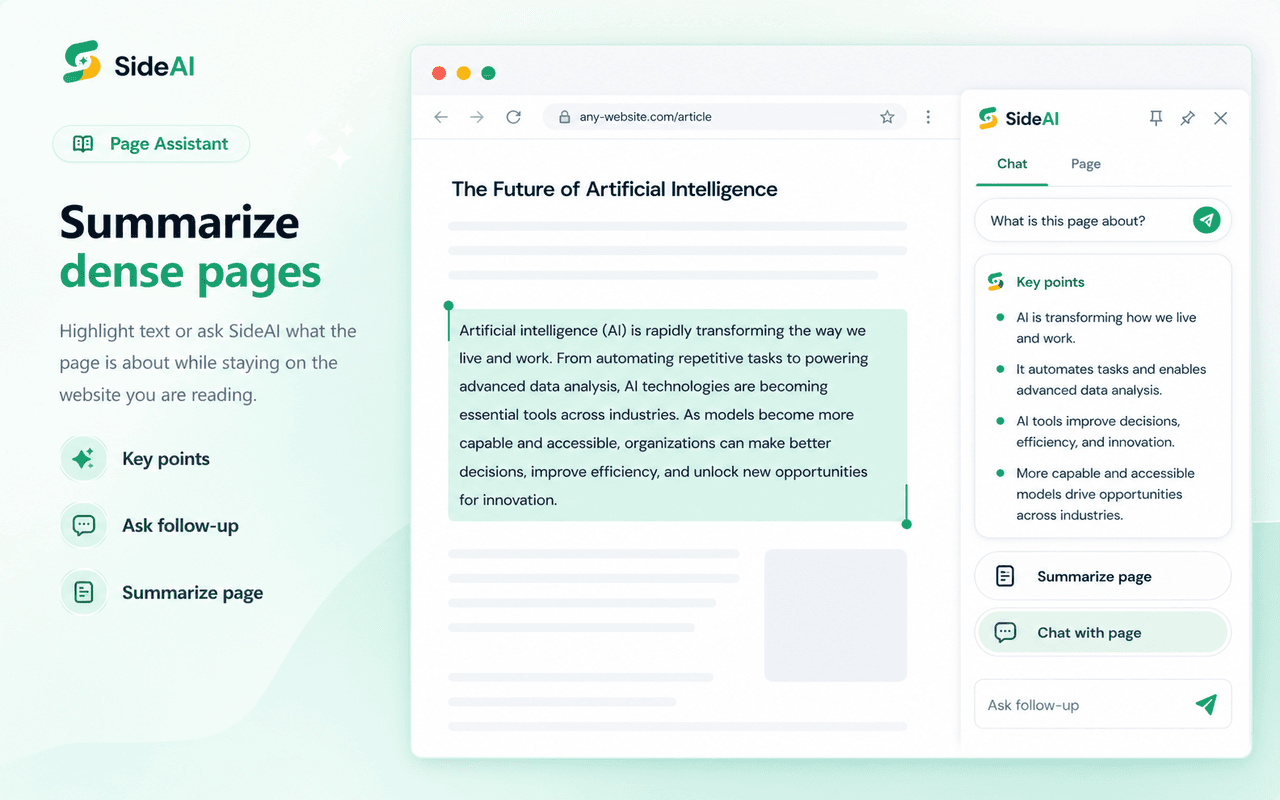
- Page Assistant summaries and page questions;
- Writing Assistant actions inside editable fields;
- screenshot-region capture and follow-up chat; and
- Search Insights beside Google results.
The feature set is designed around moving less information manually. You can keep the webpage visible, choose the smallest relevant context, and check the answer against the source.
Sidebar extension versus OpenAI's Chrome extension
OpenAI also offers an official ChatGPT for Chrome experience. Its current page describes opening ChatGPT in a sidebar and ties the experience to the ChatGPT desktop app. That is an official OpenAI product.
SideAI is an independent Chrome extension with its own browser workflows. When comparing products, verify the publisher shown in the Chrome Web Store and do not assume every extension using “ChatGPT” in its description is made by OpenAI.
Common problems
The extension opens a login page
Complete the ChatGPT authentication in the normal browser tab that opens, then reopen the panel. Google and Apple sign-in pages may need to leave an embedded side panel.
The page action cannot read the page
Refresh the page after installation and test on a normal website. Chrome blocks extension scripts on internal settings pages, Chrome Web Store pages, and some protected content.
The shortcut does nothing
Another extension or the operating system may already use the same keys. Open the extension's shortcut settings, choose an available combination, and check the displayed Windows or macOS labels.
The answer sounds confident but is wrong
Keep the source visible and request quotations, headings, or source positions you can check. Treat the assistant as a reading aid, not as proof that every claim on the page is correct.
Frequently asked questions
Is there a free ChatGPT Chrome extension?
Yes. Several extensions offer free access or a free tier, but the meaning differs. SideAI's core sidebar is free and uses your existing ChatGPT account. Advanced SideAI actions have free limits or may require Pro.
Do I need an API key?
Not for SideAI's core sidebar. Other extensions may require one, so check the product's account model before installation.
Can a Chrome extension see every webpage?
No. Access depends on the permissions you grant, the action you take, and Chrome's restrictions. Browser settings, extension-store pages, and protected content commonly block normal extension access.
Does it work on macOS?
SideAI works in supported Chromium browsers on macOS and displays Command-based shortcut labels where appropriate. Exact shortcuts can be changed in the extension settings.
Choose with one real task
Install the extension you are considering and complete one task you already understand. Check its permissions, account model, source handling, and return-to-chat behavior. A five-minute test on a familiar page reveals more than a feature count—and makes it easier to choose a ChatGPT Chrome extension that fits how you actually browse.
Next steps for choosing and using an extension
For a broader choice by browser task, read the AI browser-extension selection guide. For a repeatable draft-review workflow, try the AI email writer extension guide.
Written and reviewed by the SideAI team using hands-on product tests and cited sources. AI may assist with drafting; a person checks the workflow, claims, links, and final copy before publication.