
ChatGPT sidebar
Free ChatGPT Sidebar for Chrome That Uses Your Own Account
Use ChatGPT beside any webpage with your existing account, no API key, and a free Chrome sidebar. See how SideAI works and what to check.
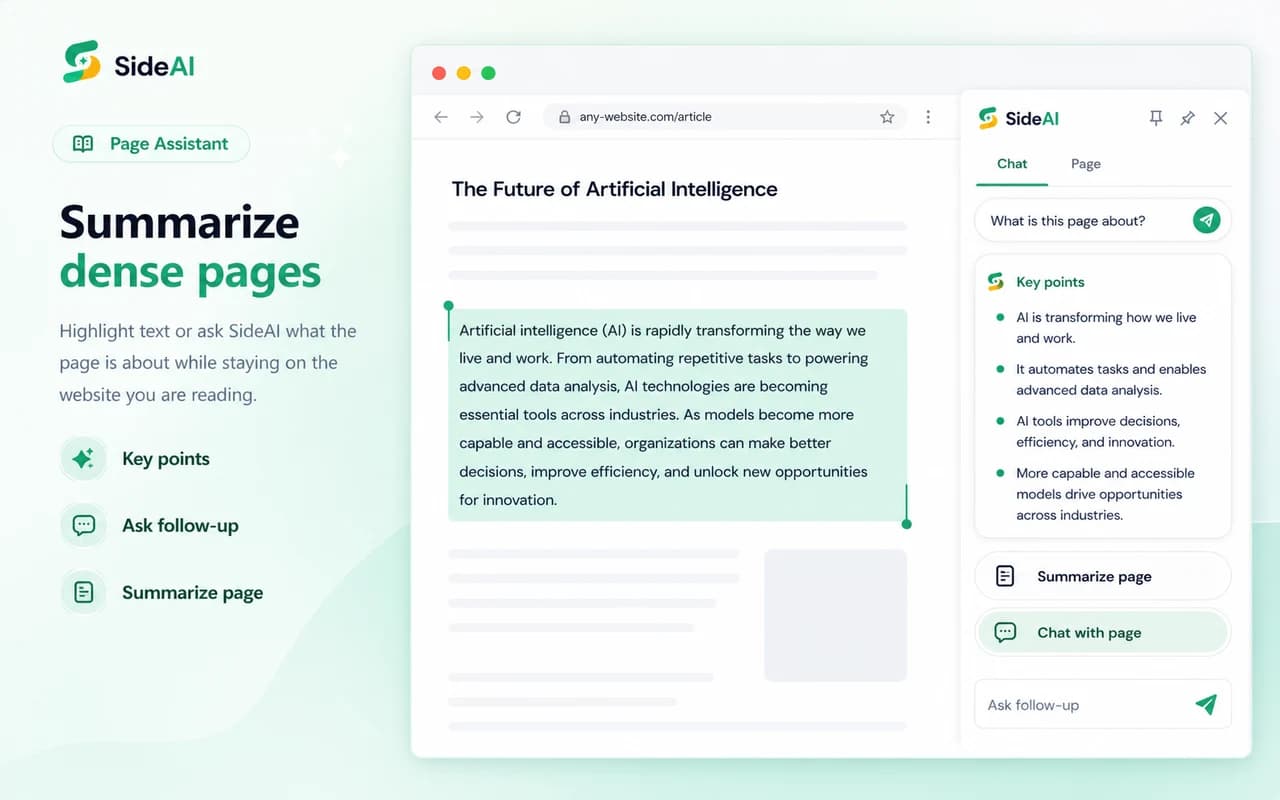
A free ChatGPT sidebar lets you keep ChatGPT beside the webpage you are using. SideAI's core sidebar works with your existing ChatGPT account and browser session, so you do not need to create, paste, or pay for an API key. Install the extension, open the sidebar, sign in to ChatGPT if needed, and continue using the models and message limits available to your OpenAI account.
This guide explains what that setup means, how to test it, and where its limits are. We tested the workflow in Chrome with SideAI 7.0.1 on September 12, 2026. SideAI publishes this guide, so product claims link to the current Chrome Web Store listing.
What does “use your own ChatGPT account” mean?
It means the sidebar opens the ChatGPT experience associated with the account you already use. SideAI does not ask you to create an OpenAI API key or maintain a separate API balance. Your available ChatGPT models, plan benefits, and message limits still come from your OpenAI account.
That distinction matters because an API key and a ChatGPT subscription are different products. A browser sidebar that requires an API key may charge usage to an API account. SideAI's core sidebar instead keeps the familiar ChatGPT session in the browser.
The practical result is simple:
- You sign in through ChatGPT's own login flow when a session is required.
- You keep the conversation beside the current webpage.
- You do not paste a secret API key into the extension.
- SideAI's optional premium plans cover extension features; they do not sell or replace ChatGPT access.
What you need before you start
The setup takes only a few minutes. You need:
- Google Chrome or a compatible Chromium browser that supports modern side panels
- A ChatGPT account you can sign in to
- The SideAI extension from the Chrome Web Store
- One ordinary webpage for the first test
You do not need an API key. You also do not need a SideAI paid plan to open the core ChatGPT sidebar. Some extension actions and higher usage levels are premium, so check the current SideAI pricing page if you need the page, writing, search, screenshot, or custom-prompt workflows heavily.
Step 1: Install the sidebar from the Chrome Web Store
Open the official listing and choose Add to Chrome. Chrome shows the permissions the extension requests before installation. Read that dialog rather than approving it automatically; browser assistants need access related to the page features they provide.
After installation, pin SideAI if you want its toolbar icon to remain visible. Pinning is optional because you can also open it with its keyboard shortcut.
Check your result: the SideAI icon should appear in Chrome's extensions menu, and selecting it should open the browser side panel rather than sending you to a separate chat tab.
Step 2: Open SideAI and sign in to ChatGPT
Open SideAI from its icon or use the default open/close shortcut shown by the extension. If ChatGPT already has an active browser session, the sidebar can reuse that session. If authentication is required, SideAI sends the Google, Apple, or email login flow to a normal browser tab so the identity provider can load correctly.
Complete the login in that tab, then reopen the sidebar. This redirect is intentional: Google and Apple authentication pages often cannot complete safely inside a narrow embedded panel.
Check your result: the sidebar should show the normal ChatGPT composer and the model available to your account. It should not request an API key.
Step 3: Keep the sidebar beside a real webpage
Navigate to an article, documentation page, or product page. Open SideAI and leave the page visible on the left. You can now hold a conversation without losing your place or arranging two separate windows.
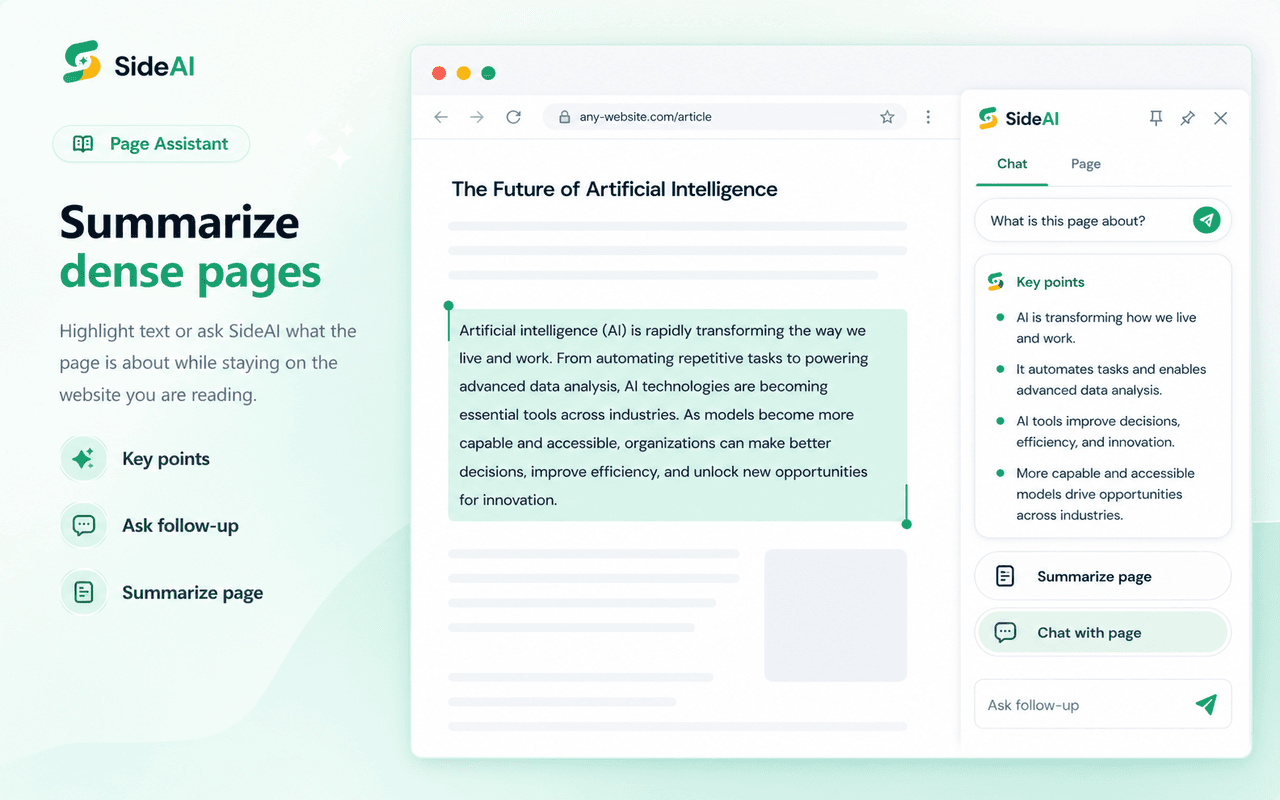
For a clean first test, ask a general question that does not require page access. Then try a page-aware action such as summarizing the current page or asking for its key points. Keeping those two tests separate makes troubleshooting easier: if normal chat works but a page action does not, the issue is likely page access rather than ChatGPT authentication.
Step 4: Choose the smallest useful context
A sidebar can work with several kinds of context. Use the smallest one that completes the task:
- Normal chat for questions unrelated to the open page.
- Selected text when one paragraph or phrase is enough.
- Page Assistant when the answer depends on the full readable page.
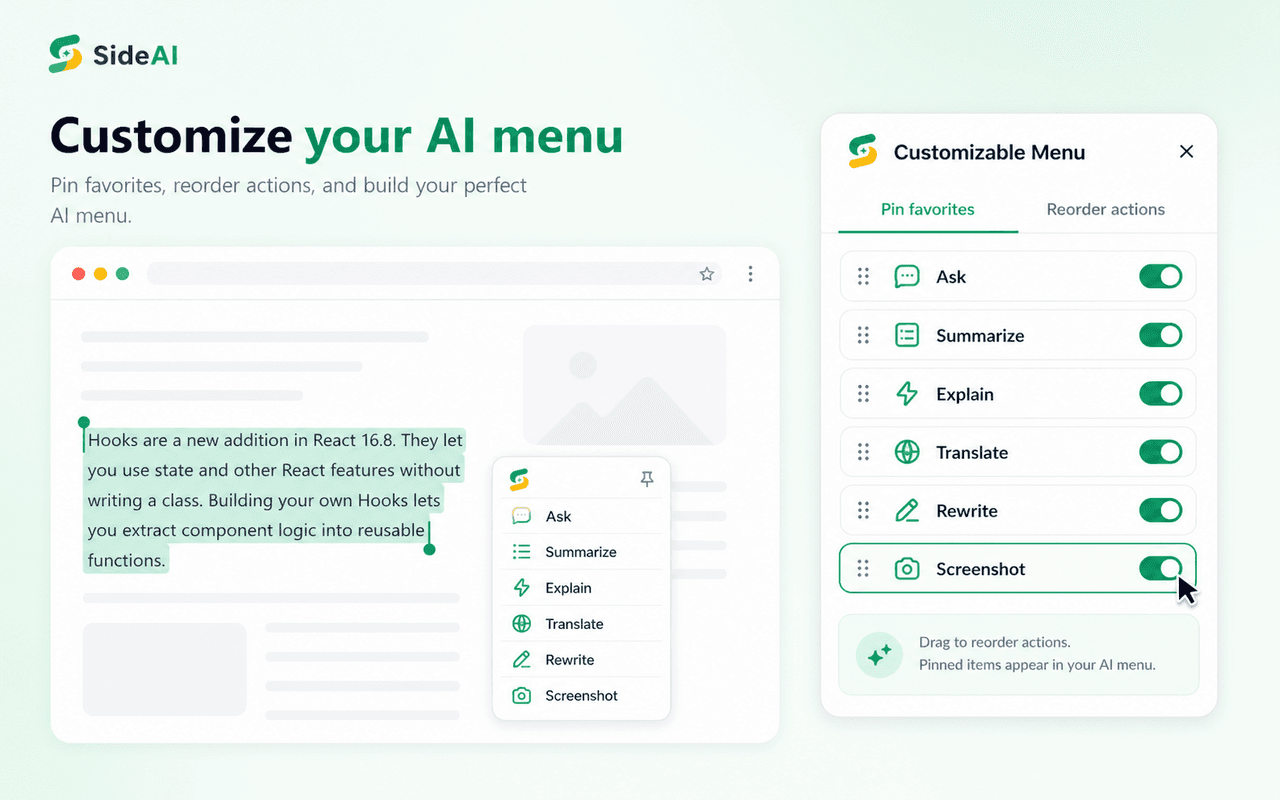
- Screenshot capture when layout, an image, a chart, or a visual error matters.
- Writing Assistant when you want help inside the field where you are typing.
Smaller context is usually easier to verify and avoids sharing irrelevant page content. For sensitive material, check the page and selection before sending anything to an AI service. The SideAI privacy policy explains the extension's data handling and links to the policies that govern connected services.
Is the SideAI ChatGPT sidebar really free?
The core ChatGPT sidebar is free to open and use through your own ChatGPT account. SideAI also offers optional paid extension features and higher usage for advanced workflows. Your ChatGPT account may have its own plan and message limits, which SideAI does not control.
This is the useful way to compare “free” browser assistants:
| What you may want to know | SideAI answer |
|---|---|
| Can I open ChatGPT in the sidebar without paying SideAI? | Yes. The core sidebar is free. |
| Do I need an OpenAI API key? | No. SideAI uses your existing ChatGPT browser session. |
| Is every SideAI action unlimited for free? | No. Advanced workflows have free limits or require SideAI Pro. |
| Does SideAI include ChatGPT Plus? | No. Your ChatGPT plan is separate and comes from OpenAI. |
| Where should I check current limits? | The Chrome Web Store listing and SideAI pricing page. |
That explanation is more useful than treating “free” as a promise that every model, action, and service has no limit forever.
What SideAI can do beyond keeping ChatGPT open
The sidebar is the starting point. SideAI's current Chrome listing also describes tools for selected text, writing fields, webpage summaries and questions, Google Search insights, screenshots, and reusable prompts.
These workflows solve different problems:
- Reading: summarize a long page, explain a difficult paragraph, or ask follow-up questions.
- Writing: improve an email, form response, or message where you are already typing.
- Research: keep the source visible while asking questions or comparing information.
- Visual help: capture a specific screen region and ask about what it shows.
- Repeated tasks: save prompts and customize the action menu around the work you do often.
If you only want a simple ChatGPT panel, the core sidebar may be enough. The practical ChatGPT Chrome extension guide shows how to evaluate account models, permissions, page context, and shortcuts. If you want a broad multi-model platform with its own credits and tools, compare the options in our hands-on guide to ChatGPT sidebar extensions.
Common problems and how to fix them
The sidebar shows a login redirect
Finish the authentication flow in the browser tab that opened, then close and reopen the sidebar. If the panel keeps redirecting, confirm that ChatGPT works in a normal tab with the same Chrome profile.
Chat works, but the page action does not
Refresh the page after installing or updating the extension. Some restricted pages, including browser settings and extension-store pages, do not allow normal content scripts. Test on an ordinary public webpage before assuming the feature is broken.
The keyboard shortcut conflicts with another extension
Open SideAI's shortcut settings and choose a combination that is available in Chrome. The shortcut help panel shows the current keys and supports Windows and macOS labels.
A history conversation opens in a normal tab
Some ChatGPT navigation or authentication flows can leave the embedded panel. SideAI includes handling for supported chat links and external login pages, but the behavior can also depend on changes in ChatGPT. Update SideAI first and retry from a standard conversation.
Frequently asked questions
Does SideAI include ChatGPT Plus?
No. SideAI provides browser-extension features. ChatGPT plans, models, and limits belong to the ChatGPT account you use. Upgrading SideAI does not upgrade the OpenAI account.
Is an API key safer than using my ChatGPT session?
They are different access methods rather than a simple safety ranking. An API key is a secret credential that must be protected and can incur API usage charges. A ChatGPT browser session follows ChatGPT's normal account authentication. Use the method that fits the product and review its permissions and privacy policy.
Can SideAI read every page automatically?
No. Page-aware actions depend on browser permissions, the action you choose, and whether Chrome allows extensions on that page. Restricted browser pages and some protected content cannot be read like ordinary websites.
Does SideAI work on macOS?
Yes, on supported Chromium browsers. The extension displays macOS shortcuts with the Command symbol where appropriate, while Windows uses Ctrl-based labels.
Which sidebar should I choose if I want several AI models?
SideAI is strongest when you want a focused browser workflow around your own ChatGPT session. Sider and Monica emphasize access to multiple AI models and broader product suites. The right choice depends on whether simplicity, model choice, multi-device access, or advanced creation tools matters most.
Start with one page, not every feature
Install the sidebar and test it on one page you already need to understand. Confirm normal chat first, then try selected text or a page summary. That short test tells you more than a long feature list and makes it clear whether an own-account sidebar fits your daily browser work.
Written and reviewed by the SideAI team using hands-on product tests and cited sources. AI may assist with drafting; a person checks the workflow, claims, links, and final copy before publication.