
Comparisons
ChatGPT Chrome Extension vs SideAI: Which Fits Your Browser?
Compare the official ChatGPT Chrome extension with SideAI by setup, browser control, page tools, permissions, account model, and best use case.
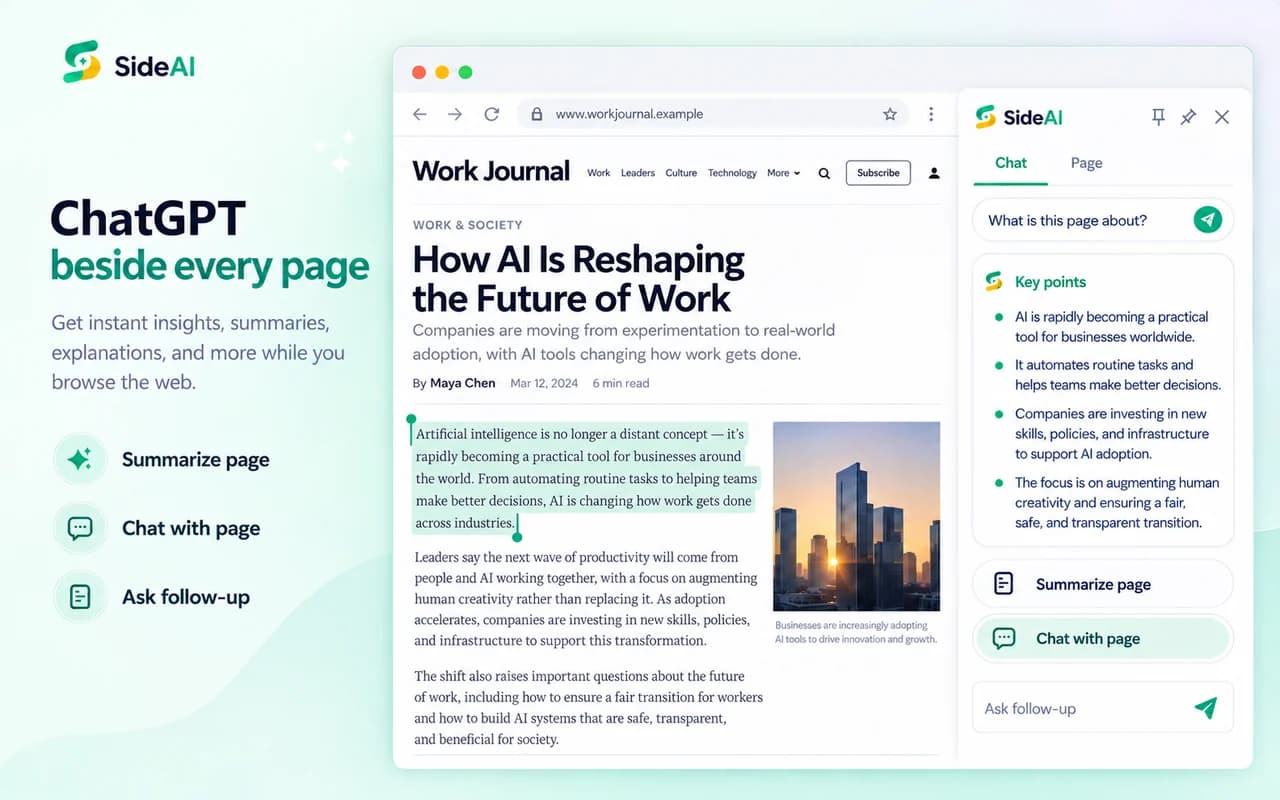
Choose the official ChatGPT Chrome extension when you want OpenAI's side chat, desktop-app connection, tab context, and browser-control workflows. Choose SideAI when you want a focused Chrome sidebar that uses your existing ChatGPT web session and adds page, writing, screenshot, search, and custom-prompt tools without requiring an API key.
Both can place ChatGPT beside a webpage. The important differences are setup, scope, permissions, and the browser job you want to repeat.
SideAI publishes this comparison and is one of the products discussed. We reviewed the official OpenAI documentation and both Chrome Web Store listings on September 16, 2026. SideAI is independent and is not affiliated with or endorsed by OpenAI.
ChatGPT Chrome extension vs SideAI at a glance
| Decision factor | Official ChatGPT extension | SideAI |
|---|---|---|
| Publisher | OpenAI | SideAI |
| Main approach | Side chat plus browser control from the ChatGPT desktop app | Focused ChatGPT sidebar and browser productivity tools |
| Chat account | Your ChatGPT account | Your existing ChatGPT browser session |
| API key | Not the normal setup | Not required for the core sidebar |
| Page context | Open tabs, selected text, page context, and supported browser tasks | Page Assistant, selected text, screenshots, writing fields, and Search Insights |
| Browser automation | Yes, through supported ChatGPT desktop workflows and permissions | Not positioned as a general browser-control agent |
| Writing inside fields | General ChatGPT help; exact behavior depends on the official workflow | Dedicated Writing Assistant with review, insert, and replace actions |
| Search-result assistance | General side chat and browser context | Dedicated Google Search Insights panel with rendered links and sources |
| Best fit | Users who want OpenAI's broader desktop and browser-control system | Users who want a focused ChatGPT sidebar with direct page tools |
This table describes product direction rather than answer quality. The model available in your ChatGPT account, the prompt, and the source material affect the output in both products.
What the official ChatGPT browser extension does
OpenAI's browser-extension documentation says the extension works with Chrome, Edge, Brave, Opera, and Vivaldi from the ChatGPT desktop app. Chrome, Edge, Brave, and Vivaldi support side chat. The documentation describes tab mentions, selected-text context, page questions, and browser tasks that use websites where you are already signed in.
The official Chrome Web Store listing emphasizes browser control, context across tabs, background work, and confirmations before sensitive actions. Its setup instructions direct users to install the extension and download the ChatGPT app.
That makes the official extension a strong fit when the browser is part of a larger ChatGPT Work or Codex task: research across authenticated sites, use open tabs as context, or let ChatGPT carry out supported browser steps after you approve access.
What SideAI does differently
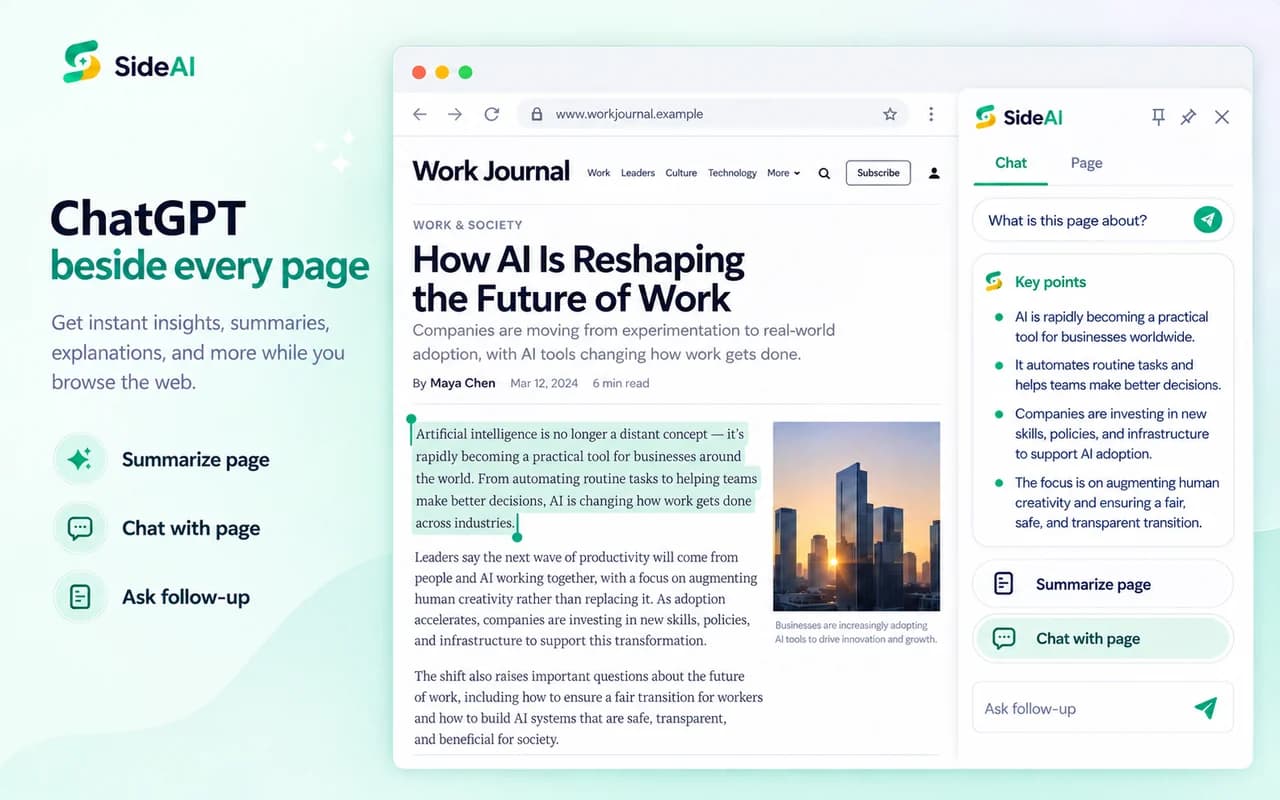
SideAI focuses on keeping the ChatGPT website and a set of direct browser helpers beside the current page. Its Chrome Web Store listing describes:
- a core ChatGPT sidebar using your existing browser session;
- selected-text actions such as explain, summarize, translate, and rewrite;
- Page Assistant summaries and follow-up questions;
- Writing Assistant actions inside editable fields;
- screenshot-region capture and attachment;
- Search Insights beside Google results;
- custom prompts and per-site controls; and
- search within the open side-panel conversation.
SideAI does not include a ChatGPT subscription. Your models, message limits, and OpenAI plan remain attached to your ChatGPT account. SideAI Pro applies to advanced extension features. The own-account guide explains that separation.
Which should you install?
Choose the official extension for broader browser control
The official extension is the clearer choice if you want ChatGPT to work across tabs and authenticated sites as part of a desktop task. OpenAI documents website approvals, allowlists and blocklists, browser-history controls, and confirmations around sensitive actions.
Review its permission prompt carefully. OpenAI's documentation says the browser may request capabilities including the page debugger, website data, browsing history, downloads, bookmarks, tab groups, notifications, and communication with a native application. Those permissions support a broader browser-control product.
Choose SideAI for a focused sidebar workflow
SideAI is the more direct fit when you mainly want to keep ChatGPT beside what you are reading or writing. Its tools are organized around explicit browser actions: select text, ask about the page, improve a draft, capture a region, or open Search Insights.
This does not make every workflow free or unlimited. The core sidebar is free, while advanced actions have free limits or may require Pro. Check current pricing before choosing based on cost.
Use both only if their jobs stay distinct
Two sidebar extensions can compete for shortcuts, site access, and screen space. If you install both, give each a clear job and test whether their keyboard shortcuts conflict. Disable the one you do not need on sensitive sites.
A practical comparison test
Use one public article and one fictional message.
Page test
Ask each extension:
Summarize this page in three bullets. For each bullet, name the section that supports it. If the page does not support a claim, say so.
Check whether the answer matches the page, keeps names and numbers intact, and makes the evidence easy to inspect.
Selected-text test
Highlight one paragraph and ask for a plain-language explanation. Confirm that the answer stays within the selection instead of pretending it read unrelated parts of the page.
Writing test
Use a disposable draft:
Make this concise and friendly. Keep Friday unchanged and do not promise a meeting: “The draft is ready. Please send feedback by Friday.”
Check whether you can review the proposed text before anything is replaced.
Return-to-chat test
Close and reopen the panel. Confirm whether the same conversation resumes, where recent chats appear, and whether the shortcut does what the product says. A strong answer is less useful if returning to it is unpredictable.
Permissions are part of the product choice
Broader automation generally needs broader access. A focused page tool may request less scope but still needs enough access to work with the page you invoke it on. Do not judge only by the number of permission lines; match each permission to a feature you intend to use.
For either extension:
- install from the verified Chrome Web Store listing;
- confirm the publisher name and website;
- review site access before using private pages;
- prefer “allow once” or site-specific access when that meets the task;
- avoid sharing passwords, payment details, private messages, or customer records; and
- remove or disable tools you no longer use.
Read SideAI's privacy policy and OpenAI's linked privacy documentation before using either product for sensitive work.
Frequently asked questions
Is SideAI the official ChatGPT Chrome extension?
No. The official extension is published by OpenAI. SideAI is an independent browser extension that works with your existing ChatGPT session and adds its own browser workflows.
Does SideAI require the ChatGPT desktop app?
No for its core sidebar. SideAI runs as a Chrome extension and uses the ChatGPT session in your browser. The official extension's documented browser-control setup is connected to the ChatGPT desktop app.
Do either of them require an OpenAI API key?
Not for their normal user setup. SideAI's core sidebar uses your existing ChatGPT session, and the official extension connects to your ChatGPT account and app.
Which extension is free?
Both can be installed from the Chrome Web Store. Product access is more nuanced: your ChatGPT plan and limits come from OpenAI, while SideAI's advanced extension features may have free limits or require Pro. Check the current product pages because plans can change.
Can both answer questions about the current page?
Yes, when the page, permissions, and account support the workflow. The official extension emphasizes side chat and broader tab context. SideAI provides a dedicated Page Assistant plus selected-text and screenshot actions.
Make the decision from one real workflow
Choose the official ChatGPT extension if you want OpenAI's desktop-connected browser control and multi-tab task system. Choose SideAI if you want a focused ChatGPT sidebar with direct page, writing, screenshot, and search tools. Then test the winner on one task you already understand and verify the result against the source.
For a general setup guide rather than a product comparison, read ChatGPT Chrome Extension: A Practical Sidebar Guide. For a wider field of products, use the SideAI vs Sider vs Monica comparison.
Sources and review scope
- OpenAI: browser-extension documentation.
- Official ChatGPT Chrome Web Store listing.
- SideAI Chrome Web Store listing, pricing, and privacy.
First-party sources reviewed September 16, 2026. Browser support, permissions, plans, and rollout rules can change.
Written and reviewed by the SideAI team using hands-on product tests and cited sources. AI may assist with drafting; a person checks the workflow, claims, links, and final copy before publication.