
Writing in context
ChatGPT Writing Assistant for Chrome: Practical Guide
Use a ChatGPT writing assistant in Chrome to draft, rewrite, and review text without losing facts, tone, or control of the final version.
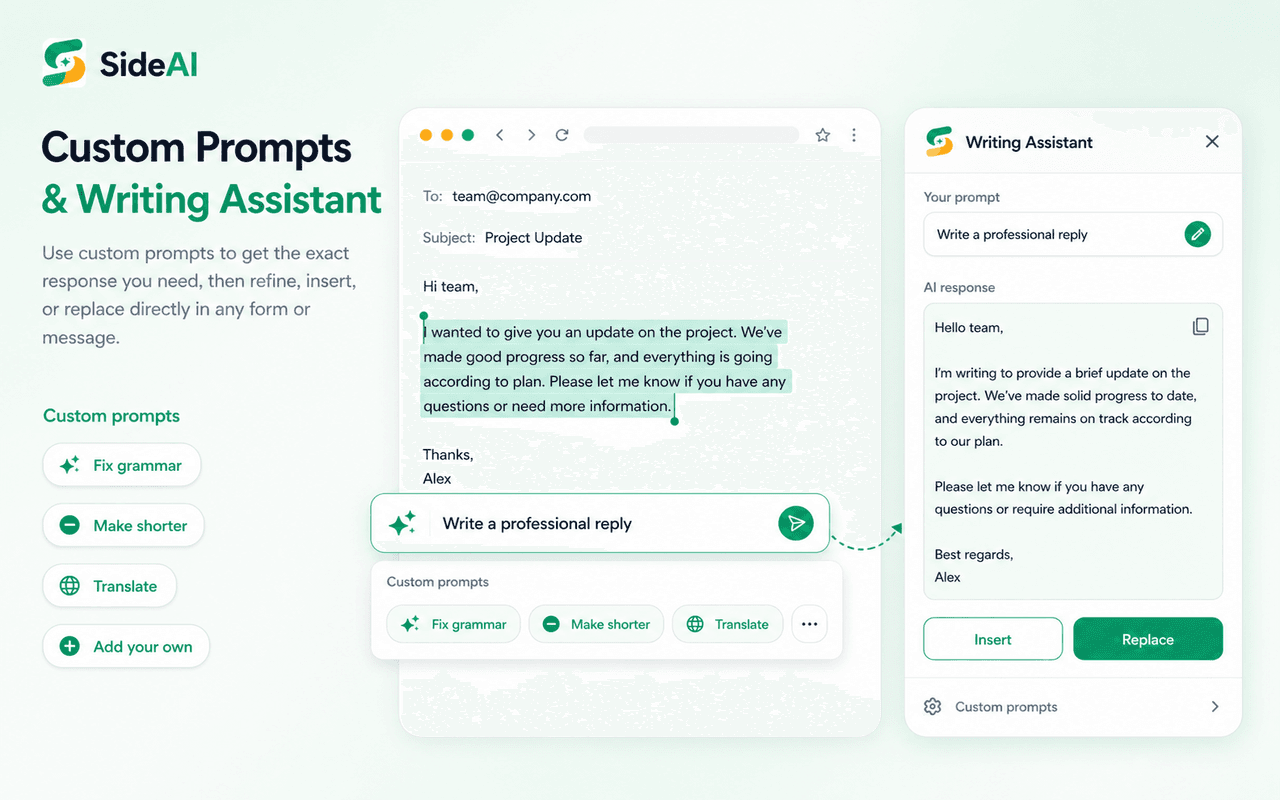
A ChatGPT writing assistant for Chrome helps you draft or revise text without moving every sentence into a separate tab. The best workflow is simple: start with your own facts, give the assistant a narrow instruction, inspect the result, and decide what to insert. That keeps the writer responsible for the final message.
SideAI publishes this guide and offers a browser writing assistant. We reviewed the current extension workflow and linked first-party documentation on September 17, 2026. Examples below are fictional editorial exercises, not measured customer results or guarantees about every web editor.
Key takeaways
- A writing assistant works best with a specific goal and clear constraints.
- Review names, dates, numbers, links, and commitments before style.
- Test new extensions with disposable text and inspect their site permissions.
- Keep the final insert, replace, and send decisions under your control.
What is a ChatGPT writing assistant?
A ChatGPT writing assistant is a browser tool that brings drafting and rewriting actions closer to the field where you are working. It may appear beside an editor, inside a popup, or in a browser sidebar. The useful part is the workflow: provide context, request a change, review the answer, then transfer only the wording you approve.
Common jobs include:
- turning notes into a first draft;
- shortening a long paragraph;
- changing tone without changing facts;
- correcting grammar and punctuation;
- restructuring a message so the request appears first; and
- creating a reusable prompt for repeated writing tasks.
This is broader than AI email rewriting. A GPT writing assistant can also help with support replies, social posts, comments, forms, product descriptions, and internal updates. If you mainly want ChatGPT available beside every page, start with the practical Chrome sidebar guide.
What should you check before installing one?
Check who publishes the extension, what permissions it requests, where it works, and whether you can review output before it changes your text. Google explains that Chrome extensions may request access to site data and that users can manage access from the extension's Details page in Chrome.
Use this short checklist:
- Open the Chrome Web Store listing and confirm the publisher.
- Read the requested permissions before selecting Add extension.
- Check whether site access can be limited to selected or specific sites.
- Read the product's privacy policy and data-handling explanation.
- Confirm that the tool shows a preview before inserting or replacing text.
- Test it with fictional content before using work or customer information.
Chrome's extension management guide explains how to change site access later. A permission warning does not automatically make an extension unsafe, but it does tell you what access to evaluate.
Step 1: Start with a controlled writing sample
By the end of this step, you will have a draft that is safe to test and easy to verify. Use a short fictional message with one detail that must remain unchanged.
For example:
The launch notes are ready. Please review them by Thursday. We may publish on Monday if the legal review is complete.
This sample contains a deadline, uncertainty, and a condition. Those details make it useful for testing. A weak rewrite may change “may publish” into “will publish” or remove the legal-review condition.
Avoid starting with confidential correspondence, passwords, payment data, medical information, or private customer records. You can judge the interface and output quality without sharing sensitive material.
Step 2: Give the assistant one precise job
Choose the main improvement before you ask for a rewrite. A prompt that combines tone, length, format, persuasion, humor, and creativity can make it difficult to see what changed.
Try this instruction:
Make this concise and friendly. Keep Thursday, Monday, the word “may,” and the legal-review condition unchanged. Do not add promises or new facts. Return only the revised message.
The prompt defines both the desired change and the boundaries. This makes the response easier to compare with the original.
For other writing jobs, use focused prompts:
| Goal | Prompt pattern | What to verify |
|---|---|---|
| Shorten | “Cut repetition but preserve every request and date.” | No action or deadline disappeared |
| Improve clarity | “Put the main request first and keep all facts unchanged.” | The purpose is visible immediately |
| Adjust tone | “Make this warmer without adding an apology or promise.” | Meaning and responsibility did not change |
| Fix grammar | “Correct grammar and punctuation only.” | Your wording remains recognizable |
| Draft from notes | “Turn these notes into a short draft. Mark missing details instead of inventing them.” | Unknowns remain unknown |
Step 3: Review facts before wording
Check factual changes before deciding whether the response sounds polished. Fluent text can hide a changed date or stronger commitment.
Use this order:
- Compare names, dates, quantities, and links.
- Check words that express certainty, such as “may,” “should,” and “will.”
- Confirm that conditions and exceptions remain present.
- Remove new claims, promises, meetings, or explanations.
- Read the result for tone and natural voice.
If the assistant changes a material detail, correct it explicitly:
Restore “may publish” and the legal-review condition. Do not change the remaining wording.
You do not need to accept the whole response. Keep one useful sentence and reject the rest when that produces a more accurate draft.
Step 4: Insert or replace only after review
An effective AI based writing assistant separates generation from editing. SideAI's Writing Assistant presents the response for review and provides distinct transfer actions. Confirm what each action will do in the current field before choosing it.
After transferring text, inspect the editor again. Rich-text fields can produce duplicated greetings, unexpected line breaks, or misplaced text. Also check that the cursor and selection were in the intended location.
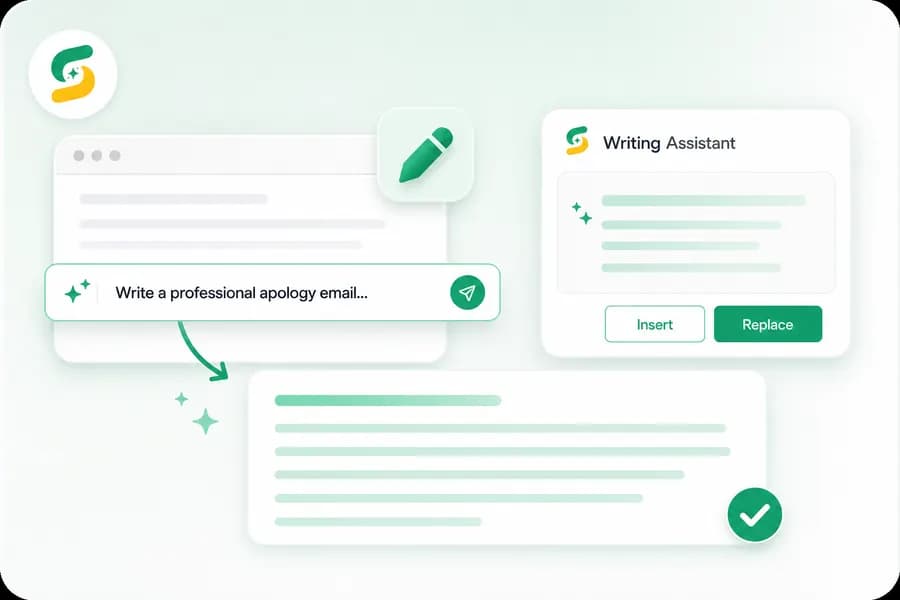
For email, the send button remains a separate decision. For a public post, verify mentions, links, and formatting in the website's preview. The assistant can propose language, but the application and the writer control publication.
How do reusable prompts improve the workflow?
Reusable prompts preserve the constraints that matter across repeated tasks. They are useful for a regular team update, support-reply structure, product description, or editing checklist. Keep personal names and case-specific details out of the saved template.
A general editing prompt might be:
Make the selected text clear and concise. Preserve facts, uncertainty, dates, amounts, names, links, and commitments. Do not add claims or promises. Return only the revised text.
Treat that prompt as a starting point. A customer explanation may need context, while a status update may need brevity. Change the prompt when the purpose changes.
What are the limits of a browser writing assistant?
A browser assistant cannot know which unstated detail is correct. It may produce confident wording that changes the meaning, and some website editors may not support direct insertion consistently. Restricted browser pages, managed devices, and site-access settings can also affect availability.
If the tool does not appear:
- confirm that the extension is enabled;
- check its site access in Chrome;
- place the cursor inside a supported writing field;
- try selecting the text before opening the assistant;
- refresh the page after changing permissions; and
- use the sidebar plus manual copy as a fallback.
OpenAI's Data Controls FAQ explains how signed-in users can control whether ChatGPT conversations help improve its models. Review those controls along with the extension provider's privacy policy before using real content.
Frequently asked questions
What is the best free AI writing assistant?
The best free AI writing assistant is the one that fits your actual editor, preserves required facts, and provides enough review control for your task. Compare free-use limits, permissions, supported sites, model access, and transfer controls. Test the same fictional paragraph in each candidate instead of choosing only by feature count.
Is a ChatGPT extension for Chrome the same as ChatGPT?
No. A browser extension provides an interface or workflow around an AI service. Check whether it uses your existing ChatGPT session, its own service, or an API key. The own-account SideAI guide explains one approach.
Can a GPT writing assistant write an entire article?
It can produce a draft, outline, or revision, but the author still needs to verify claims, sources, originality, structure, and audience fit. For factual content, open the cited sources and confirm that they support the final wording.
Can I use ChatGPT writing assistance in Gmail?
Writing tools may work in Gmail when the extension supports the compose editor and has suitable site access. Test with a disposable draft first. The dedicated email-writing workflow covers fact preservation, tone, and final-send checks.
Why does the writing assistant not appear on one website?
The site may use an unsupported editor, the extension may lack site access, or the page may be restricted by Chrome. Check the extension's Details page, refresh after changing access, and use a sidebar with manual copy if direct editing remains unavailable.
Sources and review scope
- Install and manage extensions in Chrome.
- Chrome Web Store permission explanations.
- OpenAI Data Controls FAQ.
- SideAI feature overview and privacy policy.
Reviewed September 17, 2026. Product availability, browser compatibility, and free-use limits can change. No productivity percentage or universal editor compatibility is claimed.
Written and reviewed by the SideAI team using hands-on product tests and cited sources. AI may assist with drafting; a person checks the workflow, claims, links, and final copy before publication.