
Writing in context
AI Email Writer Extension: Rewrite Before You Send
Use an AI email writer extension to improve drafts in Chrome. Try clear prompts, preserve facts, review changes, and keep control before sending.
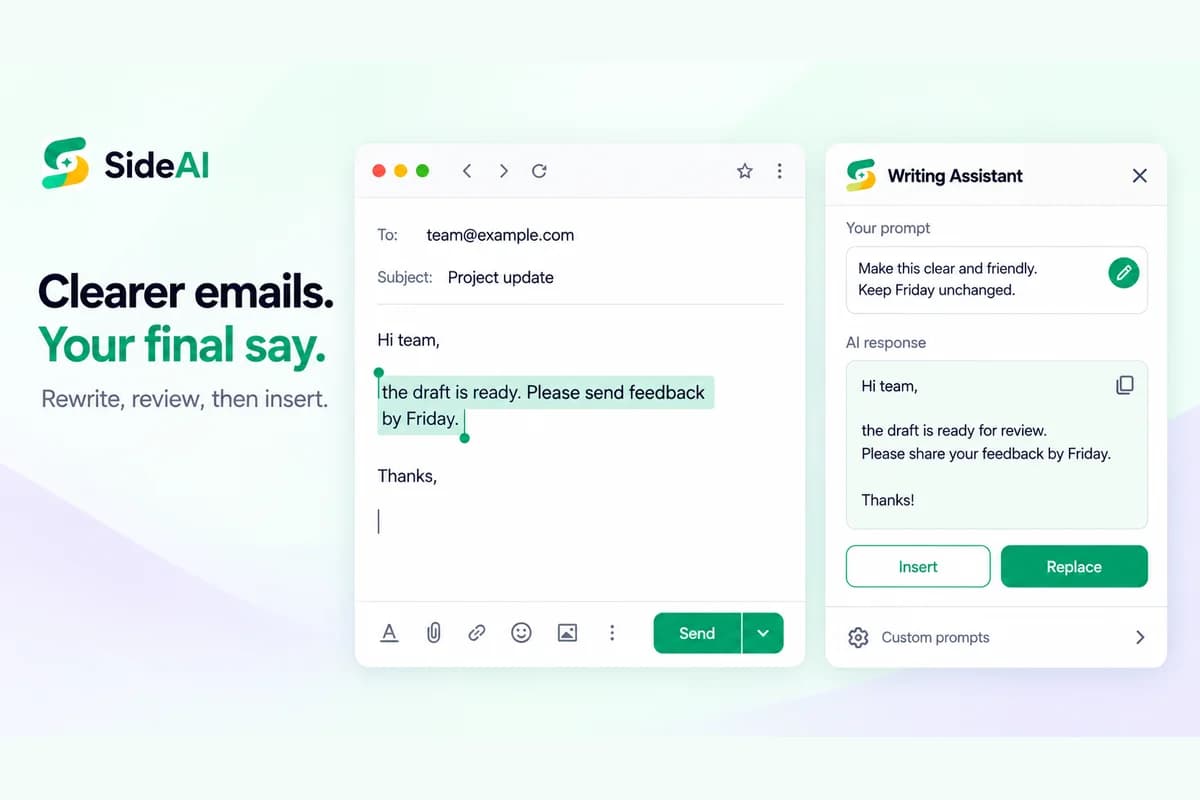
An AI email writer extension helps you revise a draft while you are working in Chrome. Start with your own message, ask for a specific improvement, and check that the rewrite preserves names, deadlines, amounts, and commitments. Insert the reviewed wording, then make the decision to send yourself.
SideAI publishes this guide and offers writing assistance, so this is a product-informed tutorial rather than an independent endorsement. We reviewed SideAI's public feature information on September 14, 2026. The messages and rewrites below are fictional editorial examples, not measured output from a live customer inbox. The featured image is an illustrative product mockup.
What should an email-writing extension do?
A useful email-writing extension should make it easy to supply a draft, describe the change you want, inspect a response, and transfer the revised wording back to your editor. Whether it works directly inside a field or through a sidebar matters less than whether you can review the result before using it.
Typical jobs include shortening a long request, making a blunt message more considerate, improving grammar, and turning notes into a first draft. These are different tasks. “Make this better” leaves the assistant to guess what you mean; “make this concise and preserve the Friday deadline” gives it a clear constraint.
SideAI's product overview describes a Writing Assistant and custom prompts for browser writing workflows. Its own-account guide explains its ChatGPT account model and free-access boundaries. Check pricing for the particular action you intend to use.
Prepare a safe test draft
Use a fictional email before trying a new extension on a real conversation. Include one detail that must stay unchanged so you can test factual preservation. A draft with a simple request and deadline is enough; there is no need to share a customer name, private attachment, or entire thread.
For this exercise, use:
Hi team, the draft is ready. I need feedback by Friday. Please tell me if anything is unclear. Thanks.
Before activating the assistant, keep a copy of the original. If you are working inside a compose window, make sure you are editing a draft rather than a message that could be sent accidentally. Use the text-selection or writing-field workflow available in the extension version you have installed.
If your editor does not support direct insertion, a sidebar conversation can still help: provide only the relevant draft, review the response, and copy the chosen wording into the editor yourself. Direct insertion is a convenience, not a reason to skip review.
Give the AI a specific rewriting prompt
Describe the tone, length, and facts you want preserved. Tell the assistant not to add promises or assumptions. A well-constrained prompt makes it easier to judge the rewrite because you have defined what success looks like before reading the output.
Try:
Rewrite this email to sound friendly and concise. Keep the deadline Friday unchanged. Do not add a meeting, apology, promise, or new information. Return only the rewritten email.
A suitable editorial example would be:
Hi team, the draft is ready for review. Please share your feedback by Friday, and let me know if anything is unclear. Thanks!
The revised wording softens the request while keeping the deadline. It does not promise a meeting or claim the draft is final. If your actual output adds either detail, remove it or ask for another revision.
Avoid sending a vague instruction such as “make it professional” repeatedly until the response feels polished. Professional writing still needs a clear audience and request. Give the assistant the information it needs, and keep unnecessary private context out of the prompt.
Choose prompts for common email jobs
Pick the prompt that matches the problem in your draft. A shortening request should remove repetition; a tone request should adjust phrasing; a grammar request should preserve meaning. Combining every possible instruction can produce a generic message that no longer sounds like you.
| Draft problem | Prompt to try | What to inspect |
|---|---|---|
| Too long | “Shorten this without removing the request or deadline.” | The action and date are still clear |
| Too abrupt | “Make this considerate without adding an apology or promise.” | The tone is warmer but the meaning is intact |
| Hard to follow | “Put the main request first. Keep all factual details unchanged.” | The recipient can identify the next step |
| Grammar errors | “Fix grammar and punctuation only. Preserve my wording where possible.” | It has not rewritten the entire message |
| Notes instead of a draft | “Turn these notes into a short email. Do not invent missing details.” | Unknowns have not become asserted facts |
For a follow-up, add a boundary:
Write a brief follow-up asking whether the recipient has reviewed the draft. Do not imply that they missed an agreed deadline unless the notes explicitly say that.
That distinction prevents a routine reminder from becoming an accusation. When the relationship matters, read the final message as the recipient might read it.
Review facts before tone
Check the rewrite against the original line by line. Names, dates, amounts, links, attachments, and commitments deserve attention before style. Fluent wording can make a changed detail easy to overlook, especially when you are replying quickly.
Use this review order:
- Confirm the recipient and purpose.
- Check every date, quantity, and named item.
- Remove unsupported promises or explanations.
- Confirm the requested next step is still present.
- Read for tone and wording that sounds like you.
If the draft says “we may deliver Tuesday,” a rewrite saying “we will deliver Tuesday” has changed a commitment. If it says “the draft,” a rewrite calling it “the final version” has changed its status. These are meaningful errors even if the new message is shorter and easier to read.
Ask for a second pass when necessary:
Your rewrite changed “may deliver” to “will deliver.” Restore the original uncertainty and keep the rest concise.
You do not need to accept the entire response. Keep a sentence you like and discard the rest if that gives you a more accurate message.
Insert or replace deliberately
After review, use the extension's supported transfer action or copy the wording manually. In SideAI's illustrated Writing Assistant workflow, Insert and Replace are separate controls. Understand what each action does in your current editor before using it on a draft you care about.
Keep the original available until you have checked the text in the compose field. Look for duplicated greetings, missing line breaks, and text inserted in the wrong place. Rich-text editors can behave differently from a plain input, so verify the resulting draft rather than assuming every website behaves identically.
Sending remains a separate decision. Check the recipient, subject, attachments, and final wording in the email application. A rewriting workflow should not be mistaken for permission to send automatically.
Save a reusable prompt once it works
A custom prompt can make a repeated task more consistent. Save the constraints that helped, such as preserving deadlines and avoiding new commitments. Keep personal or customer-specific details out of the template so the next use does not accidentally carry them into another message.
For example:
Make the selected draft clear, concise, and considerate. Preserve facts, uncertainty, dates, amounts, and commitments. Do not add an apology or promise. Return only the revised draft.
Use this as a starting point, not a rule for every recipient. A sensitive support response may need more explanation than a team update. Adjust the instructions for the actual purpose rather than forcing every email into the same length or tone.
What if the assistant does not work in your editor?
Check whether the extension has access to that site and whether the intended text is selected or the writing field is focused. Chrome provides instructions for managing extension site access. Avoid broadening permissions beyond what you need just to troubleshoot a single field.
If direct editing still fails, use a sidebar and manual copy as a fallback. Test with a fictional draft first, and review SideAI's privacy policy before sharing actual correspondence. Restricted pages and unsupported editors may need a different workflow.
For choosing between a focused writing workflow and a broader suite, read our AI browser-extension selection guide. If you primarily want ChatGPT beside a page, the Chrome sidebar guide covers that setup separately.
For writing beyond email, the ChatGPT Writing Assistant guide covers reusable prompts, browser permissions, factual review, and transfer controls across different web editors.
Sources and review scope
- SideAI's official feature overview.
- SideAI pricing and privacy policy.
- Chrome extension and site-access guidance.
Reviewed September 14, 2026. Examples are editorial illustrations; no live inbox test, guaranteed editor compatibility, or quantified productivity claim is made.
Written and reviewed by the SideAI team using hands-on product tests and cited sources. AI may assist with drafting; a person checks the workflow, claims, links, and final copy before publication.