
Page workflows
Web Page Summarizer: Summarize With ChatGPT
Use a web page summarizer to extract key points, verify them against the source, and ask better follow-up questions without losing page context.
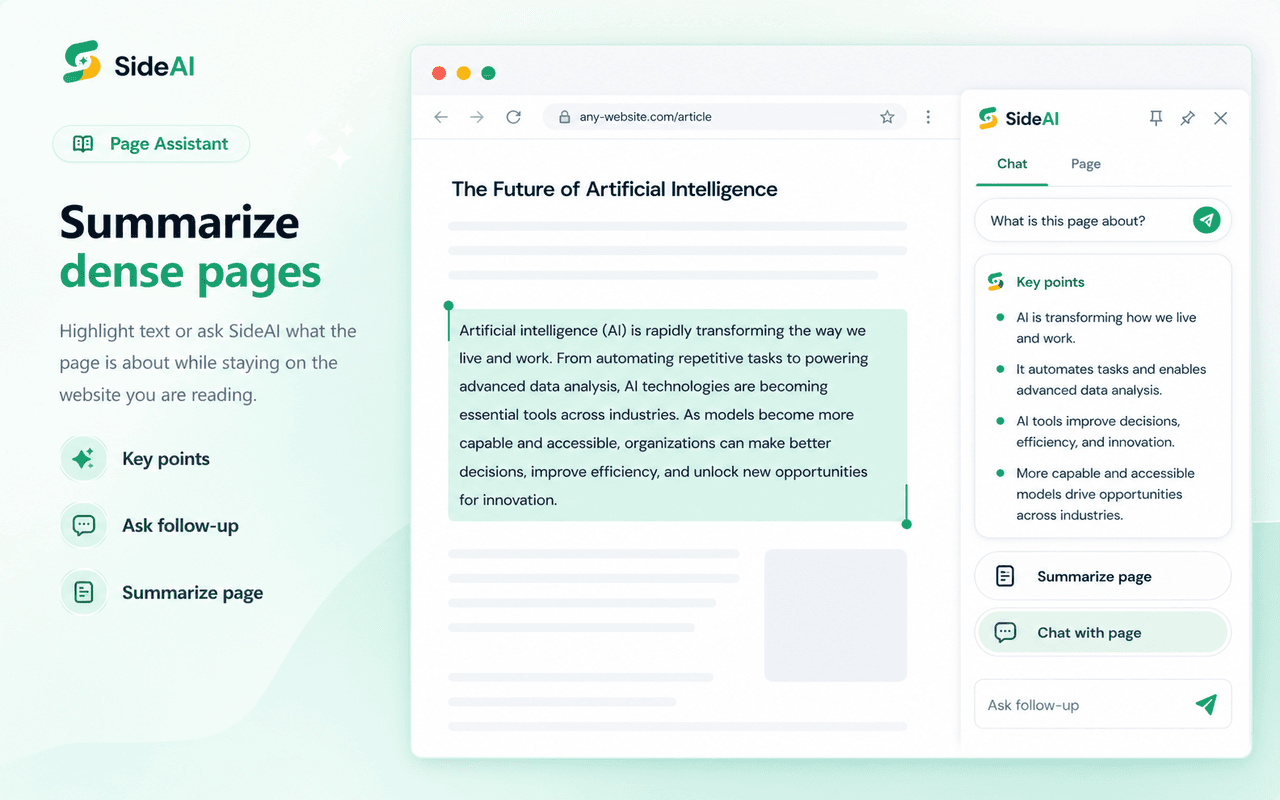
A web page summarizer should reduce a long page to useful points while keeping the original visible for verification. With a ChatGPT browser extension, you can summarize the current page, ask where each point came from, and inspect the source before relying on the answer.
SideAI publishes this guide and provides Page Assistant features. We reviewed the workflow and official browser guidance on September 17, 2026. The method applies to public articles and accessible webpages; results depend on the page structure, available text, model, and instructions.
Key takeaways
- Define the summary's purpose, length, and required details before generating it.
- Verify important points against the visible source and open cited links.
- Ask the assistant to identify missing information instead of guessing.
- Use selected text when a whole-page summary is too broad.
What does a web page summarizer do?
A web page summarizer extracts the main ideas from page content and returns a shorter version. Good tools also let you refine the result by audience, length, format, or question. A browser sidebar is useful because the source and the AI response remain visible together.
Useful summary formats include:
- three key points for a quick scan;
- a section-by-section outline;
- claims and the evidence supporting them;
- decisions, deadlines, or action items;
- a plain-language explanation for a new reader; and
- a comparison table when the page discusses several options.
A summary is a navigation aid, not proof that every statement is correct. For research, policy, financial, legal, or health decisions, read the relevant source section and consult appropriate expertise. The ChatGPT sidebar guide explains how a side panel keeps the conversation next to the webpage.
What should you prepare before summarizing a page?
Choose a public page, decide what you need from it, and check whether the extension can access the content. A clear purpose prevents the assistant from spending equal space on every section.
Before starting:
- Identify the page title, publisher, and publication or update date.
- Decide whether you need an overview, evidence, action items, or an explanation.
- Note any section that matters more than the rest.
- Avoid pages containing private account data or confidential information.
- Check the extension's site access and privacy information.
Google lets users manage whether an extension can read and change data when selected, on specific sites, or on all matching sites. Its extension management guide shows where to review those settings.
Step 1: Ask for a structured first summary
Start with a small, testable output. Instead of “summarize this,” define the number of points and what each point must include.
Try:
Summarize this page in five key points. For each point, name the page section that supports it. Separate facts stated by the page from your interpretation. If the page does not answer something, say so.
This prompt makes verification part of the first response. It also discourages a smooth but unsupported overview.
If you need a specific format, request it directly:
| Goal | Prompt pattern |
|---|---|
| Quick scan | “Give me three key points in plain language.” |
| Research notes | “List the main claims, evidence, and named sources.” |
| Meeting preparation | “Extract decisions, owners, deadlines, and unresolved questions.” |
| Product comparison | “Create a table of options, stated benefits, limits, and prices.” |
| Learning | “Explain the page for a beginner, then define five important terms.” |
Step 2: Verify each important point
Compare every consequential claim with the source. Look for the exact heading, paragraph, table, or linked document supporting it. If the answer includes sources, open them rather than relying on the label alone.
Use a follow-up such as:
For each key point, quote no more than one short phrase from the page and tell me where it appears. Remove any point that the page does not support.
Keep quotations short and use them as location clues. The goal is to reach the source section, not to reproduce the article.
Watch for common summary errors:
- a condition presented as a universal rule;
- an old figure presented as current;
- a prediction rewritten as a fact;
- the publisher's opinion described as consensus;
- a conclusion taken from a linked page rather than the current page; or
- a missing limitation that changes the meaning.
Step 3: Narrow the context when the page is too broad
Use selected text when you need accuracy on one section rather than coverage of the entire page. This works well for a dense policy paragraph, technical explanation, long product table, or passage containing unfamiliar terms.
Select the relevant text and ask:
Explain this passage in plain language. Preserve all conditions, dates, quantities, and exceptions. Define unfamiliar terms, but do not add facts that are not present.
Then ask one targeted question:
What would I need to verify elsewhere before acting on this passage?
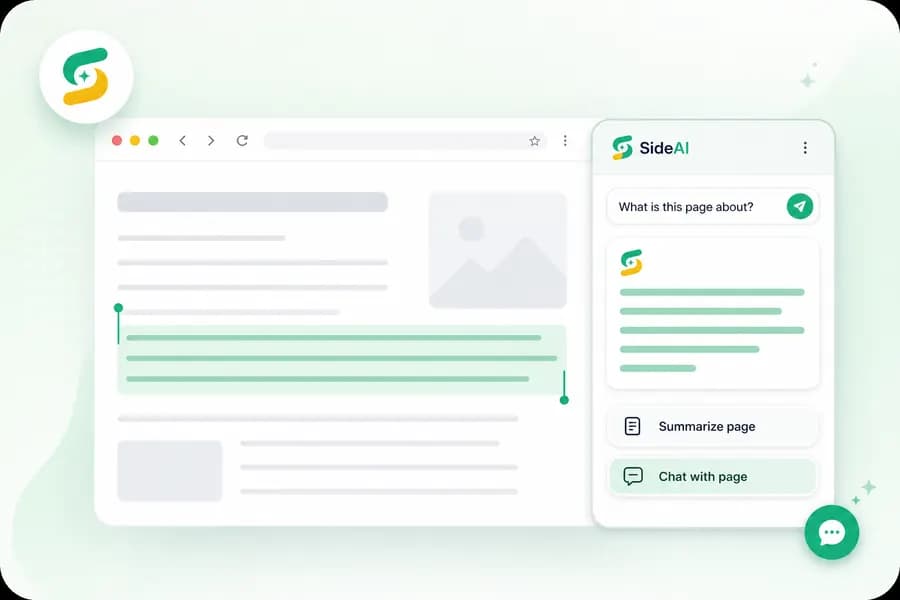
This creates a more useful reading workflow than repeatedly requesting a shorter summary. SideAI also offers selected-text actions, while its Page Assistant is designed for questions about the current page. The Chrome AI guide compares this focused extension workflow with built-in browser AI options.
Step 4: Turn the summary into a useful output
Choose an output that matches the next task. A generic summary often becomes another block of text to reread. A decision table, checklist, or question list is easier to apply.
Examples:
- Convert a tutorial into ordered steps and prerequisites.
- Turn a product page into claimed features, limits, and questions to verify.
- Turn a report into findings, methodology, caveats, and source links.
- Turn meeting notes into decisions, owners, dates, and open questions.
- Turn a news article into confirmed facts, attributed statements, and unresolved details.
Ask the assistant to retain uncertainty. If a page says a feature “may” arrive, the output must not say it “will” arrive. If a price depends on region or plan, keep that condition attached to the number.
Step 5: Ask follow-up questions without losing the source
Follow-up questions are where a ChatGPT browser extension becomes more useful than a one-click summary. You can clarify a term, compare sections, expose missing evidence, or reshape the result for a specific audience while the page remains available.
Useful follow-ups include:
- “Which section contains the strongest evidence for this conclusion?”
- “What assumptions does the author make?”
- “Which questions are left unanswered?”
- “Separate statements from this page and facts from linked sources.”
- “What changed between the old and new policy described here?”
- “Create a checklist using only instructions stated on this page.”
When current web research matters, compare the summary with other sources. SideAI's Google Search assistant guide explains a separate workflow for reviewing source-backed answers beside search results.
Why might a page fail to summarize correctly?
Some pages do not expose readable text in a normal way. Others load content after interaction, place information inside embedded viewers, require a login, or restrict extension access. Very long pages can also need section-by-section handling.
If the result is empty or incomplete:
- Wait for the page to finish loading.
- Confirm the extension is allowed on the site.
- Refresh the page after changing site access.
- Select the relevant passage and summarize that text instead.
- Open embedded documents in their own supported viewer when appropriate.
- Copy a short, non-sensitive excerpt into the sidebar as a fallback.
Chrome extensions run within browser permission and page-access rules. Google's Chrome Web Store overview explains that extensions add features to webpages, while the extension's listing and permission prompts describe its requested access.
How should you handle private or sensitive pages?
Do not attach a private page merely because summarization is convenient. First check the page's sensitivity, your organization's rules, the extension's privacy policy, and the AI account's data controls.
OpenAI's Data Controls FAQ explains how personal ChatGPT users can control whether conversations help improve models. Managed work accounts may have separate administrator policies. SideAI's privacy policy describes the extension provider's practices.
Use public or fictional material when evaluating a new tool. Avoid passwords, financial account pages, medical portals, customer records, confidential contracts, and content you are not authorized to share.
Frequently asked questions
Can ChatGPT summarize any webpage?
No. A page must expose usable content and the selected workflow must have permission to access it. Login walls, embedded viewers, unsupported formats, scripts, or restricted browser pages can prevent complete extraction. Selected text or a short manual excerpt may work when whole-page context does not.
Is a web page summarizer accurate?
It can produce a useful overview, but accuracy varies with the source, model, prompt, and page structure. Verify dates, quantities, conditions, quotations, and important conclusions against the original page. Treat the result as a reading aid rather than an independent authority.
What is the best prompt for summarizing a webpage?
Ask for a defined number of points, the supporting section for each point, and a clear distinction between source statements and interpretation. Add the desired audience or output format. Tell the assistant to identify missing information instead of filling gaps.
Do I need a ChatGPT Chrome extension to summarize pages?
No. You can copy permitted text into ChatGPT manually. A browser extension reduces switching and can preserve page context, selected text, or source links. Review permissions and privacy practices before enabling page access.
Can I summarize several tabs together?
That depends on the extension and feature version. When multi-tab attachment is available, select only the tabs needed for the question and label each source clearly. Verify which statement came from which tab before combining conclusions.
Sources and review scope
- Install and manage extensions in Chrome.
- What is the Chrome Web Store?.
- Chrome Side Panel API overview.
- OpenAI Data Controls FAQ.
- SideAI feature overview and privacy policy.
Reviewed September 17, 2026. The article does not claim universal page compatibility, guaranteed accuracy, or measured time savings.
Written and reviewed by the SideAI team using hands-on product tests and cited sources. AI may assist with drafting; a person checks the workflow, claims, links, and final copy before publication.