
AI browsers
Chrome AI: Built-In Gemini or a ChatGPT Extension?
Understand Chrome AI, Gemini in Chrome, on-device AI, and browser extensions—then choose the right assistant for pages, writing, and research.
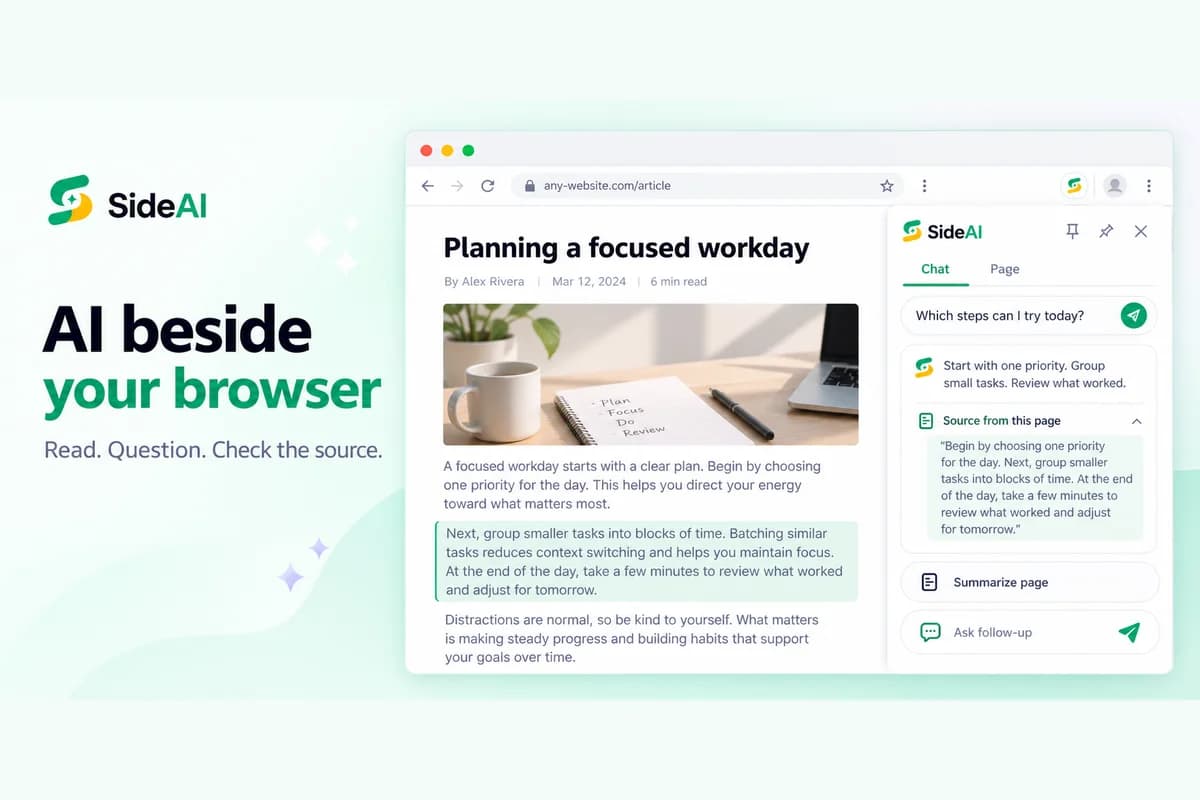
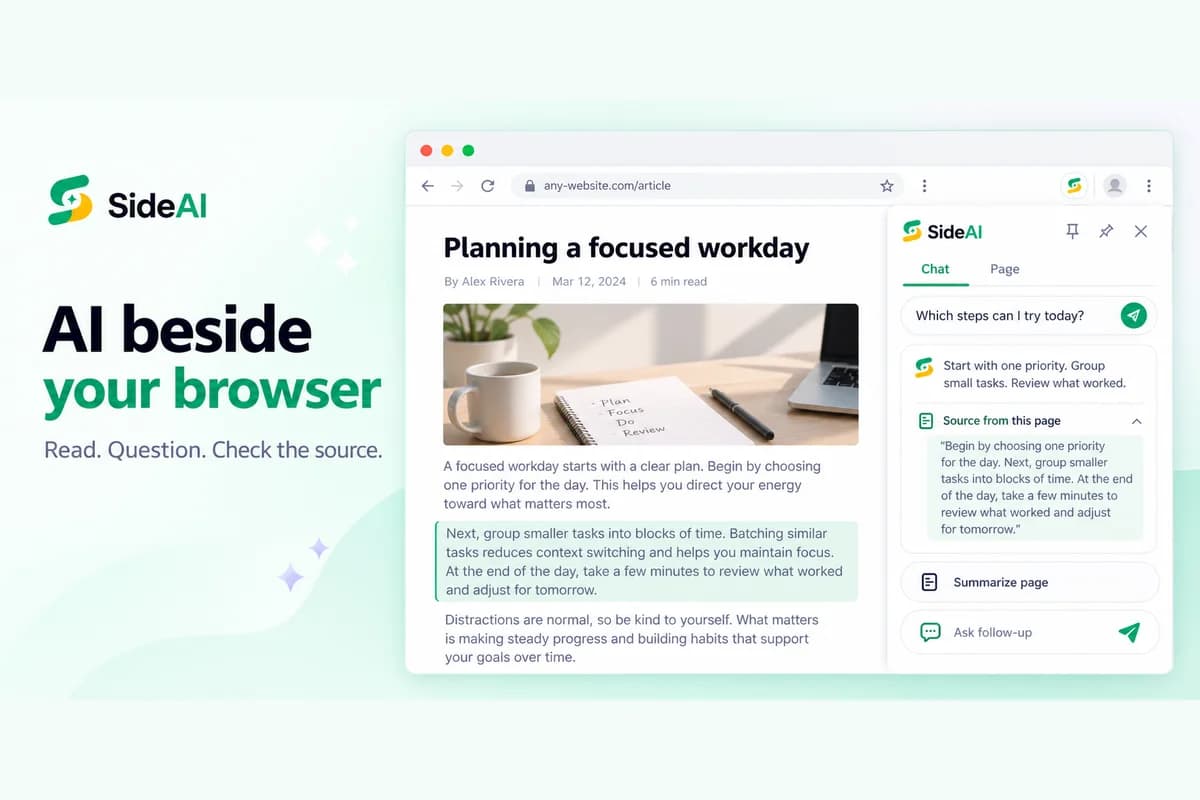
Chrome AI can mean three different things: Gemini features built into Chrome, on-device AI APIs used by websites and extensions, or an AI extension installed from the Chrome Web Store. Choose Gemini in Chrome when you want Google's integrated, multi-tab assistant and it is available for your account. Choose a focused extension such as SideAI when you want your existing ChatGPT account beside every page with page, writing, screenshot, and search workflows.
Those products overlap, but they are not interchangeable. This guide separates them, shows what to check before installing anything, and gives you a short test based on work you already do.
SideAI publishes this guide and is one of the products discussed. We reviewed the linked first-party documentation on September 16, 2026. SideAI is independent and is not affiliated with Google or OpenAI.
What does Chrome AI include?
| Chrome AI category | What it does | Best starting point |
|---|---|---|
| Gemini in Chrome | Provides an AI browsing assistant that can work with page and tab context | Research across tabs and Google services |
| AI Mode in the address bar | Handles longer, multi-part searches and follow-up questions | Exploring a topic from the omnibox |
| Built-in AI APIs | Let developers add summarizing, writing, rewriting, translation, and prompting features | On-device or hybrid AI features inside sites and extensions |
| AI browser extensions | Add their own sidebar, writing, page, screenshot, or search workflows | A specific recurring task or preferred AI account |
Google's Chrome AI announcement describes Gemini in Chrome as a browsing assistant that can answer questions across tabs and connect with Google services. The same announcement describes AI Mode in the omnibox as a way to ask more complex search questions.
Chrome also exposes built-in AI APIs for developers. These APIs cover tasks such as summarizing, writing, rewriting, proofreading, translation, language detection, and general prompting. They are building blocks for websites and extensions, not one universal assistant that automatically appears for every user.
Gemini in Chrome versus an AI extension
The right choice depends on the account and workflow you want, not on which product has the longest feature list.
| Decision | Gemini in Chrome | SideAI extension |
|---|---|---|
| Main assistant | Gemini | Your existing ChatGPT browser session |
| Typical context | Current page, open tabs, and supported Google services | Current page, selected text, screenshots, writing fields, and Google Search results |
| API key | Not the normal user setup | Not required for the core SideAI sidebar |
| Availability | Varies by country, language, device, account, and rollout | Available through its supported Chrome Web Store listing and compatible Chromium browsers |
| Product focus | Deep Chrome and Google integration | Focused ChatGPT sidebar and page workflows |
| AI plan | Governed by Google's current product rules | ChatGPT access and limits remain governed by your OpenAI account; SideAI Pro covers extension features |
Google says Gemini in Chrome can summarize content, compare information across tabs, and integrate with services such as Gmail, Maps, Calendar, and YouTube. Availability has expanded over time, including announcements for the United Kingdom and Canada, but Google still advises that features depend on the device, country, language, and account.
SideAI takes a different route. Its Chrome Web Store listing describes a ChatGPT sidebar with selected-text actions, Page Assistant, Writing Assistant, screenshot capture, Search Insights, custom prompts, and per-site controls. The core sidebar uses your existing ChatGPT session rather than asking you to paste an API key.
Choose by the job you want to finish
Ask about several tabs
Start with Gemini in Chrome if your priority is comparing several open tabs or moving between Chrome and supported Google services. Confirm that the feature is available on your account before reorganizing your workflow around it.
Keep ChatGPT beside a page
Use a sidebar extension when the main job is reading one page while talking to ChatGPT. SideAI keeps the source and conversation visible together and lets you continue with the ChatGPT account you already use. The practical ChatGPT sidebar guide explains the account and permission model in more detail.
Rewrite inside a field
Look for a writing assistant that lets you review the output before inserting or replacing text. Test it in a disposable draft with a date, amount, or name that must remain unchanged. Our AI email writer guide provides a repeatable fact-preservation test.
For a broader drafting and revision workflow, use the ChatGPT Writing Assistant guide. To work through long pages instead, follow the web page summarizer method and verify each important point against the source.
Understand a Google result page
AI Mode changes how you search from Chrome's address bar. A search-results extension instead adds an answer beside the results page. SideAI Search Insights focuses on the second workflow and can render source links so you can open the supporting pages. See the ChatGPT for Google extension guide for the checks that matter.
Use AI features offline or on-device
Chrome's built-in AI APIs can run supported tasks with browser-managed models after the required model download. Google's current developer requirements include supported desktop operating systems plus storage and hardware thresholds. Whether a particular website or extension uses those APIs is a product decision; installing Chrome alone does not make every AI workflow local.
Run a five-minute Chrome AI test
Use one public article you already understand.
- Ask the assistant for three key points from the page.
- Ask it to identify the section supporting each point.
- Select one paragraph and request a plain-language explanation.
- Ask one question the page does not answer.
- Check whether the assistant says the information is missing instead of guessing.
Then test one writing task in a disposable field:
Rewrite this message to sound concise and friendly. Keep the deadline Friday and do not add commitments: “The draft is ready. Please send feedback by Friday.”
The useful result preserves Friday, avoids inventing a meeting, and lets you review the change before insertion.
Check permissions and data flow
AI browser features need context to answer questions about a page. The important questions are what context is used, when access happens, and which account receives the prompt.
Before enabling a feature or extension, check:
- which sites and page content it may access;
- whether it can use open tabs, browsing history, or selected text;
- whether the action runs only after you invoke it;
- whether data goes to Google, OpenAI, an extension provider, or an on-device model; and
- how to disable the feature on sites where you do not need it.
Avoid testing with passwords, payment information, private customer records, or confidential work. A public article and fictional message are enough to decide whether the workflow fits.
Frequently asked questions
Is Chrome AI the same as Gemini?
No. Gemini in Chrome is one Chrome AI experience. The broader term also covers AI Mode, safety features, developer APIs, and third-party AI extensions.
Is Chrome's built-in AI available on every computer?
No. Google's built-in AI documentation lists operating-system, memory or GPU, storage, language, and model-download requirements. Individual APIs also have different release stages.
Can I use ChatGPT instead of Gemini in Chrome?
Yes. The official ChatGPT browser extension and independent products such as SideAI can put ChatGPT in a browser sidebar. Compare their permissions, desktop-app requirements, and page tools before choosing.
Does SideAI include ChatGPT Plus?
No. SideAI uses your existing ChatGPT account. Your models, subscription, and message limits come from OpenAI. SideAI's own paid plan applies to advanced extension features.
Choose one assistant for one recurring task
Start with the job that interrupts you most: comparing tabs, understanding a page, rewriting a message, or checking search results. Test one assistant on that job, verify its answer against the source, and keep it only if it removes steps without hiding the evidence you need.
Sources and review scope
- Google: Chrome reimagined with AI.
- Chrome for Developers: built-in AI requirements and APIs.
- Google: Gemini in Chrome expansion to the UK and Canada.
- SideAI Chrome Web Store listing, pricing, and privacy.
First-party sources reviewed September 16, 2026. Product availability, plans, and rollout rules can change.
Written and reviewed by the SideAI team using hands-on product tests and cited sources. AI may assist with drafting; a person checks the workflow, claims, links, and final copy before publication.